Background Tasks, Progress, and Notifications
Some AI creations take a few minutes. Video lectures, podcasts, slide decks, research reports, and large flashcard decks all do real work behind the scenes. You don't have to watch them. Close the window, open something else, or leave the site. Scholarly keeps working and tells you when each one is ready.
In short
- Start a creation and press Create.
- Close the window or keep working. The creation carries on.
- Choose Notify me for a browser notification, or wait for the ready email.
- Open Tasks in the sidebar to see everything running, waiting, and new.
What Runs in the Background
Every AI creation keeps running after you close its window, including:
- Video lectures, podcasts, and AI Slides
- Flashcard decks made from PDFs, audio, or research
- Deep Research reports
- AI Meeting Notes, once the upload or live recording has finished
- Pages, summaries, study guides, worksheets, mind maps, infographics, and every other document
- Spreadsheets, AI Documents, Text to Speech, and Transcribe
- Edits you confirm in AI Chat, see Editing Your Creations in AI Chat
Once the work has started, it runs on Scholarly's servers. Finish any file upload or live recording first, because capturing audio still needs your device. After that, you can close the laptop.
You can also start something later instead of now. See Scheduled Tasks.
The Progress Page
Every creation opens a progress page straight away. It answers the question you have while you wait: is this working, and how much longer?
- What it is doing now, in plain words, with an estimate of the time left once there is enough to go on.
- The steps, such as reading your sources, planning, writing, recording narration, and rendering, with the current one marked.
- Elapsed time and a typical range for this kind of creation. Long sources and long outputs can take more time.
- Counts where they help, such as chapters recorded for a podcast or scenes finished for a video lecture.
- What you asked for: your sources, prompt, language, length, and model, so you can check the request.
Video lectures show more: how many sections are planned and how long the lecture will run, the outline with each section ticked off, and a first look at finished scenes before the video is put together. On a Free lecture, the page also shows which parts of your PDF the full lecture would add.
You do not need to wait for one creation to start the next. The progress page offers to make something else from the same source while this one finishes.
While a video lecture, podcast, or deck is being made, use Ask for a change on its progress page to steer it, such as "add a worked example" or "keep section 2 shorter". Scholarly reads your message between steps and replies there.
On a phone, the progress page is an app-style screen with Back at the top, the outline as a simple list, and a swipeable strip of finished scenes.
If a creation runs well past its usual time, the page says This is taking longer than usual. It can still finish after that.
The Tasks Page
Tasks, in the sidebar, is one place for everything Scholarly is doing for you. It opens on what matters now:
- Needs you: anything that failed or is waiting for your answer.
- In progress: running work, with its current step and about how long is left. Work running past its usual time says Taking longer than usual.
- Ready for you: finished creations you haven't opened yet, with Play or Open, Mark as seen, and Make next to turn the same source into something else.
- Coming up: scheduled and repeating work.
- Earlier this week: finished work you have already seen.
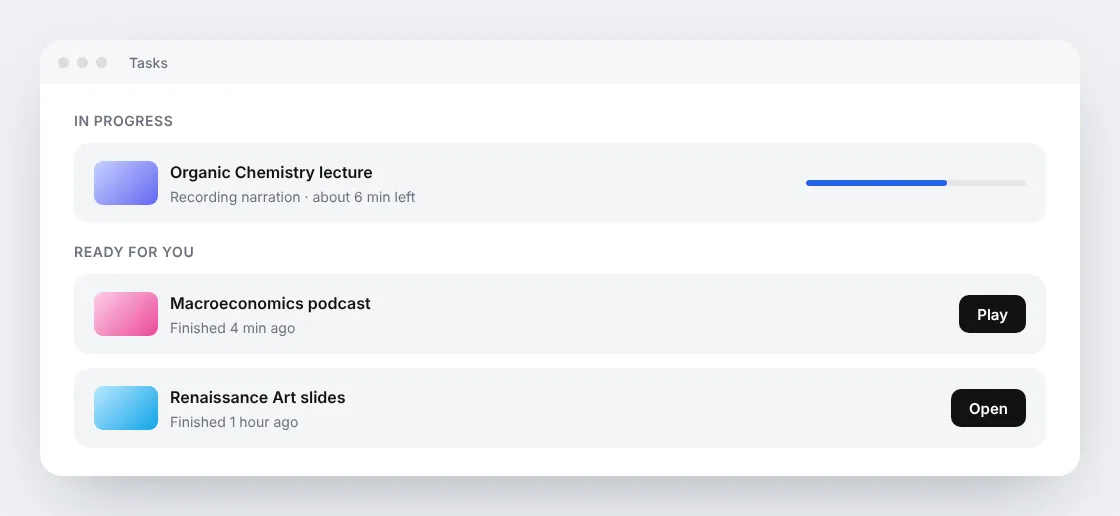
Press / to search your tasks by title. A count next to Tasks in the sidebar shows what is running or needs attention.
Running tasks have no Cancel button in the list, so a stray click can't stop a creation. Open the task to cancel it.
How You Know It's Done
- Notify me: on desktop, choose Notify me while a creation runs and your browser shows a notification when it is ready, even if you are in another tab or app.
- In the app: the finished item appears on Tasks and at the top of your library. Anything still running also sits in the In progress group on Home.
- By email: Scholarly can email you when a long creation finishes, with a preview of what was made. One switch in Settings → Notifications turns these emails on or off. See Creation-Ready Emails.
- In the browser tab: the tab title and icon change when a creation finishes.
Podcasts don't always make you wait for the whole episode. On an episode with several chapters, chapter 1 can play while the rest is still recording, and playback switches to the full episode without losing your place.
Cancelling
Open the creation's progress page and choose Cancel generation where it is offered. You are asked to confirm, because anything made so far is discarded. A creation still waiting for its scheduled time can always be cancelled, and its credit comes back. Cancelled work is labelled Cancelled, not failed.
If a Creation Fails
The progress page and the task explain what went wrong in plain terms and offer only the fixes that can help: Try again, Try another model, Pick fewer pages, or Replace the source. A plain retry is not offered when the problem is in the source itself, because it would fail the same way.
Failed creations don't use your AI Creation Credits. The credit is returned automatically. If a creation keeps failing on the same source, try it without that source. For every reason and its fix, see When a Creation Fails.
Background Help from AI Chat
AI Chat can hand longer research, writing, or file work to a background helper and report back in the same conversation. A helper running on Best or a premium chat model uses your weekly premium usage, the same allowance as the chat. If that allowance is spent when the helper starts, it runs on Auto.
Asking Chat to make a video lecture, podcast, flashcard deck, or other creation still costs the AI Creation Credits shown on its confirmation card. See AI Chat.
Several at Once
You can start several creations and follow each one on Tasks. Some may wait briefly for capacity, and your plan's AI Creation Credits still apply. Check the cost shown before creating each one. See Plans and Limits.
Related
- Creation-Ready Emails, what the finished-creation email shows.
- When a Creation Fails, every failure reason and the fix that matches it.
- Scheduled Tasks, starting a creation at a chosen day and time.
- Home and Library, where in-progress and finished work appears.
- Plans and Limits, your AI Creation Credits.