Scholarly October 2026 Updates Recap
October 2026: One chat that follows you everywhere, 3D models, a Tasks page, every source in every creator, a podcast cast with 66 voices, and a dozen new interface languages.

October was the month Scholarly got easier to talk to and easier to feed. Chat became one conversation that follows you across the app, with memory, replies, pinned messages, real pictures, and tasks it can run while you keep working. Every creator learned to take every kind of source, including Word, PowerPoint, Google Drive, Dropbox, and Notion files. Video lectures got faster and easier to follow, podcasts got a cast of voices, and the whole app arrived in nine more languages. Here is the full rundown.
Major Features
One Chat That Follows You Across Scholarly
Chat is now a single conversation across Home, the Chat page, projects, and your content. Your thread, history, and draft stay with you as you move around, and each message remembers the page, PDF, video, or project you had open when you sent it. Long threads load older messages as you scroll and still answer quickly. Pinned chats lead on Home, the sidebar, and the Chat page.
Chat also remembers more. Its memory is now a set of named files you can read, edit, and delete in Settings under Chat, and you can ask about something from another chat and Scholarly will find it and pull up what was said. Deleting a chat now removes its notes from memory too.
How to use it: Open Chat from anywhere and keep talking. Use the clock button in full-screen chat to search, pin, or reopen earlier chats beside the conversation.
A Lighter, Messaging-Style Chat
Your messages are solid bubbles on the right, and each paragraph of an answer is its own bubble on the left. While chat works, one quiet line says what it is doing and then what it did, such as "Thought for 12s". Click it to see every step and the thinking behind the answer. Copy, listen, retry, rating, and sources appear on hover or tap, and small timestamps mark where a chat starts, long pauses, and each new day.
You can now reply to an earlier message, an answer block, or selected text, then jump to the original and back. Right-click a message for reply, copy, listen, edit, or retry. Press R to reply, L to listen, and Alt or Option with the arrow keys to move between messages. On phones, swipe right on a message to reply, or long-press for its actions.
You can also pin any answer or your own message. Pins sit in a bar at the top of the chat so you can jump to each one, and you can ask chat to pin a deadline, plan, or key fact for you.
How to use it: Hover over a message and pick Pin or Reply. On a phone, long-press the message.
Chat Can Work in the Background While You Keep Chatting
Chat can hand bigger jobs, like a calendar file or a spreadsheet built from your sources, to a background task while you keep talking. A card in the thread shows what it is doing and lets you cancel. The result lands in the same thread with the file attached, even if you closed the tab, and unread results show a dot in the sidebar and a row on Home. For long tasks the card can email you when it is done.
You can also schedule work for later. Ask chat to start a task at a future time, find it on Home, start it early, move it, or cancel it. On paid plans, ask chat to repeat a task every day, week, or month for up to 12 runs, with each result posted in the same chat. Tasks you start from a project or folder save their results back into it.
How to use it: Ask something like "Make flashcards from this chapter every Monday for the next month" or "Have a summary ready tomorrow morning".
A Tasks Page for Everything in Progress
Tasks now sits in the sidebar next to Library. It lists everything running, scheduled, repeating, or needing a look, plus what finished in the last week. Creations like video lectures, flashcards, and slides sit beside chat tasks, each with search and a filter. Start, move, or cancel anything waiting right from its row, retry or dismiss what failed, and watch a count on the sidebar for what is running or has failed.
Every Creator Takes Every Source
Word, PowerPoint, OpenDocument, and RTF files now keep their original file and open like a PDF, with pages, a summary, and page citations. In every creator, you can pick pages or chapters, and chat reads and cites them by page.
Slides, documents, summaries, mind maps, infographics, essays, read-aloud, flashcards, quizzes, 3D models, and Image Studio now take the same sources as video lectures and podcasts: Word and PowerPoint files, videos, audio, recordings, podcasts, research reports, images, links, and files from Google Drive, Dropbox, and Notion. A finished research report can go straight into any creator with Make from this.
Notion and Dropbox also joined Google Drive as read-only connections in Chat, so you can search pages, browse folders, and use them as sources. You can connect more than one Notion workspace and disconnect any time.
How to use it: Open any creator, choose Add source, and pick a file, a link, a recording, or a connected account. For long documents, choose Pages or Chapters to build from just the part you need.
3D Models (Beta)
Describe a process, structure, system, or molecule, or start from a PDF in your library, and Scholarly builds an interactive 3D model with labels and animation. Spin it, zoom in, move live sliders and switches while it runs, and open it full page. You can ask for one from any chat, and it builds while you keep working. Small edits through chat are free, and a full build costs 1 AI Creation Credit that comes back if the build does not finish.
On paid plans you can export a 4K image, a turntable video, or a file for PowerPoint and Keynote. Public links open without an account, or you can limit access to invited people or your team.
How to use it: Choose 3D model from the New menu, or tell chat "build a 3D model of this process", then describe or attach a PDF.
Video Lectures: Faster, Easier to Follow, and Easier to Wait For
Long video lectures finish much sooner. In our tests, the rendering of a 45 minute lecture dropped from 20 to 35 minutes to about 5, with the same picture and sound. New videos start on Standard Fast, which gives you designed slides with fewer effects, and Standard remains available.
While you wait, a new progress page shows what Scholarly is doing right now, a row of stages (reading, planning, narration, rendering, final check), the lecture's outline ticking off as each section is narrated, and a first look at the finished scenes. You can start your next creation from the same source while this one finishes.
Once a lecture is ready, it is easier to use too. Listen instead plays the same narration as audio, with chapters, your speed, and your place, and keeps going with the screen locked. New lectures show which page of your PDF each scene came from, and clicking a page opens the PDF right there. You can make a finished lecture in another language for one credit, with the same scenes and figures narrated and labeled natively. Six new animated scene types arrived too: function graphs, tables, 2×2 frameworks, funnels, cycles, and code walkthroughs.
How to use it: Open a finished lecture and choose Listen instead, or Send to my phone next to Share for a QR code and a link that opens ready to listen.
Podcasts: Cast Your Show and Pick from 66 Voices
A new Cast section lets you name your host, guest, and producer and give each one a voice. Tell Scholarly who the guest is, like a cardiologist, and the host welcomes them by name on air. Turn the producer off for a two-person show, and your cast is remembered for the next episode. Google and Grok voices joined the standard voices for podcasts, video lectures, and read-aloud audio, and every voice has its own character that you can favorite or shuffle.
You can also give any finished podcast, video lecture, or audio file new voices without rewriting it. Podcast pages now open on a player card with chapters, speed, and captions, and you can add a podcast feed to Apple Podcasts or another app through a private link.
How to use it: In the podcast creator, open Cast, pick voices for each role, and create. On a finished episode, choose the voice option to re-record it with a new cast.
Scholarly in a Dozen New Languages
The app, marketing pages, help center, and emails are now available in British English, German, French, Spanish (Spain), Spanish (Latin America), Brazilian Portuguese, Dutch, Korean, Simplified Chinese, Italian, Turkish, and Arabic, alongside English and Japanese. Arabic follows a right-to-left layout throughout. New accounts start in the language your browser uses, and you can switch any time in Settings under Appearance.
Narration improved too: video lectures, podcasts, and read-aloud now use a voice set to your language across more than 30 additional languages, including Czech, Polish, Greek, Hebrew, Thai, Persian, Urdu, Ukrainian, and the Nordic languages. Arabic and Hebrew lectures read right to left.
Real Pictures in Chat
Ask to see something real, like a nephron, a painting, or the Berlin Wall in 1989, and chat shows freely licensed photos and diagrams from Wikipedia and Wikimedia Commons instead of an AI illustration. Several pictures sit together in a swipeable row, and tapping one opens the set full screen with who made each picture, its license, and a link to the source.
Chat Reads Your Whole Source and Shows Its Evidence
Scanned PDFs, image-only pages, and tables are now read from the page itself, so answers no longer describe a watermark or miss a rubric. When a long video or recording is only partly read, chat says so. Hover a citation, or tap it on a phone, to see the exact passage and page before you open it.
A Cleaner Look
A new interface typeface, softer consistent corners, and lighter icons make the whole app calmer. Dark mode is clearer, with brighter text and surfaces that separate by shade instead of outlines. Home keeps Chat in the box on desktop, with your tools one click below. Press ⌘K (Ctrl K on Windows) for a command palette with recent items and quick actions. Settings now has six clear sections, and your plan and credits lead the Plan and usage tab.
Image Studio, Rebuilt Around Your Projects
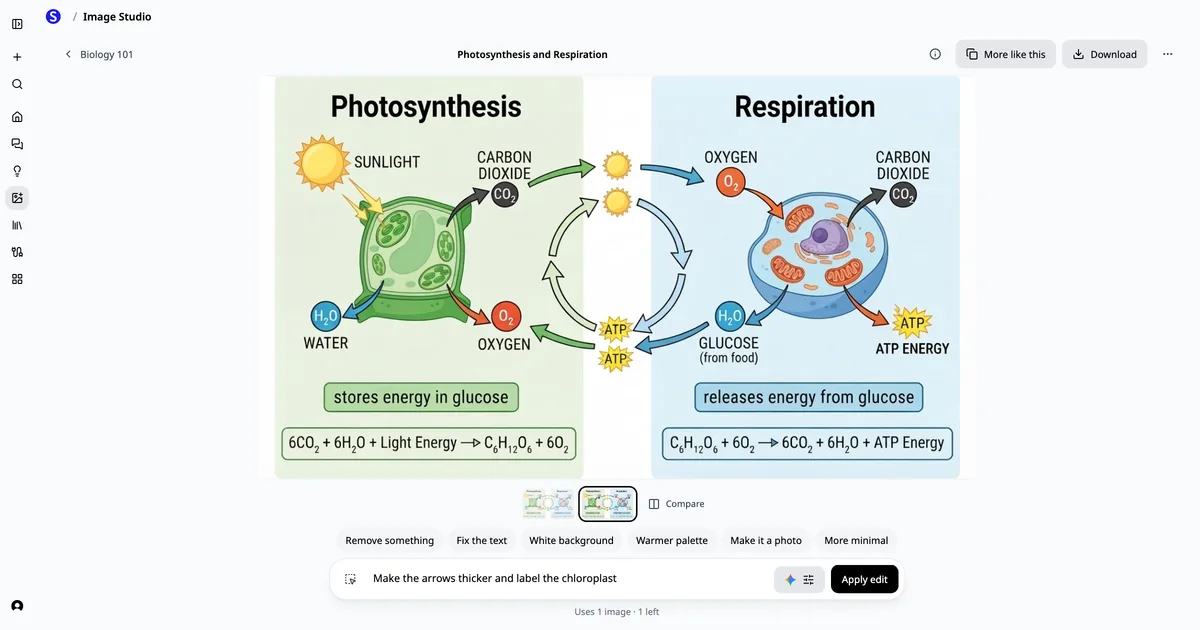
Image Studio opens on your projects, and every image you make inside one is saved to its files. From a document reads a PDF and suggests covers, diagrams, and social cards, citing the pages each came from. Click any image to edit it full screen: describe a change, drag over an area, use one-tap edits, or compare versions. Chat can also edit your story books and other PDFs in place, including redrawing a picture while keeping the page layout and art style.
Sharing Gets Safer and Simpler
Shared links can now require a password, expire after 24 hours, 7 days, or a time you choose, and be revoked so the old address stops working. Folders set to Anyone with the link open without an account. The Share window now offers four clear choices: Only people you invite, Everyone at your team, Anyone with the link, and Public. New links are not listed in Explore or search unless you choose Public.
On a paid Scholarly Teams plan, a lecture or podcast shared with your team shows who opened it, how far they got, and how they did on its questions, and owners and admins can download the table.
Plans, Credits, and Meetings
Meetings no longer use an AI Creation Credit: the transcript and notes are included, with weekly allowances for each plan. Recordings get a full transcription pass after capture for a more accurate final transcript, and they still finish on their own if you close the tab. Premium again offers monthly and yearly billing, and a middle-sized credit pack joined the lineup. Premium subscribers now start chats on the strongest model with a weekly usage meter showing what is left and when it resets, and chat continues on Auto after the allowance runs out. Teams workspaces now start with your own seat on your own plan, and you upgrade your team plan to add seats and invite teammates.
Everyday Improvements
- Voice notes in chat. Ask for a voice note and chat replies with a short spoken message you can scrub and read along with.
- Delete chats. Delete a chat from its menu, with Undo in the confirmation.
- One Filter button in your library. Search plus a single Filter button for view, type, grouping, and sort.
- Summaries cover every topic. Study Guides are now called Summaries, plan a section for every topic, are reviewed once, and end with a review checklist and practice questions.
- Slides, infographics, and diagrams rebuilt. Slides use real figures from your PDFs, with up to 30 slides on paid plans, dark mode, and speaker notes in the PowerPoint download. Mind maps and flowcharts are clearer, and story books keep the same characters and art style on every page.
- Simpler projects. Projects open on one Add sources button and one Create menu, with sharing in the header.
- Choose pages or chapters. Pick the exact content for videos, flashcards, quizzes, podcasts, and slides.
- Real Word files. AI File can make an editable Word document with headings, tables, and lists.
- Pages typeset math. Type $…$ for an equation inside a sentence, and click it to edit.
- Reply, ready, and credit emails. "Ready" emails preview what you made and open your creation already signed in.
- Flashcards and quizzes. Calmer study screens, quizzes pre-written for each deck so Quiz starts instantly, and a final edit that checks every card against your source.
- Better wait estimates. Estimates use recent completion times for each style and length.
- Faster everywhere. Uploads, chats, Home, the Library, and PDFs open faster, including on phones and slow connections.
- Compare pages. New pages compare Scholarly with Grok, Claude, Microsoft Copilot, Synthesia, and more, plus results guides for PMP, CISSP, Series 7, and CFP exams.
How to Use the Highlights
Pin and reply in chat
- Hover over a message (or long-press on a phone).
- Choose Pin to keep it in the bar at the top, or Reply to answer that exact message.
- Tap the pin bar to jump to each pinned message.
Schedule a creation
- Open any creator and choose Schedule in the create options.
- Pick This evening, Tomorrow morning, or your own date and time, or queue it After my current creation.
- Find it on Home or the Tasks page, where you can change the time, run it now, or cancel it.
Build a 3D model
- Choose 3D model from the New menu, or ask chat for one.
- Describe what you want, or attach a PDF.
- Confirm the build, then spin, zoom, and adjust sliders. Export from the menu on paid plans.
Make a video from a Word or PowerPoint file
- Open the video lecture creator and choose Add source.
- Pick a Word or PowerPoint file, or connect Google Drive, Dropbox, or Notion.
- Choose pages or chapters, pick a length and style, and create.
Cast a podcast
- Open the podcast creator and find Cast.
- Name the host, guest, and producer and choose a voice for each.
- Create the episode, then give it new voices later without rewriting it.
Share a link safely
- Open Share on any item and choose Anyone with the link.
- Add a password and an expiry time.
- Choose Revoke link any time to stop the old address from working.
Bug Fixes and Reliability
Video Lectures and Podcasts
- Long lectures that stalled now recover and finish, and a render that would run out of time starts again on its own.
- Lectures with still images keep the picture on screen for the whole narration instead of failing near the end.
- Lectures in Afrikaans and other uncommon languages now get full narration instead of ending early.
- Math lectures come much closer to the length you pick, and right-to-left lectures turn pages in the right direction.
- Diagram slides size boxes to their text, so boxes no longer overlap and labels no longer break mid-word.
- Opening a question during a podcast pauses the episode, the way it works for video lectures.
- Videos and podcasts that fail to load try a fresh copy before showing an error.
Chat
- A chat turn that hits a temporary provider problem retries or switches model instead of ending in an error.
- A very long chat thread opens and keeps working again.
- A chat open in two tabs stays in sync, and an answer whose connection dropped keeps streaming in place.
- Stopping a response before an answer arrives keeps your question and offers Retry.
- Read aloud works again after a voice service change.
Uploads, Sources, and Recordings
- A blank PDF or saved viewer page is caught on the create screen with the reason, instead of failing after you wait.
- Files that are not downloaded to your device yet (iCloud, OneDrive, Google Drive) are flagged as soon as you add them, and uploads retry through brief connection drops.
- A PDF saved under another name, such as an unfinished browser download, is recognized and uploaded as a PDF.
- Recording on Android Chrome starts on the first tap, and recordings stop getting stuck on "already in progress".
- A recording whose audio timing jumps partway through is transcribed in full instead of being cut short.
- Finishing a long recording no longer fails over a single storage hiccup.
Billing, Account, and Sharing
- Resuming an annual upgrade keeps annual billing selected, and a failed renewal payment now says so with a button to update your card.
- Safari keeps your selected file through checkout and upgrades.
- Signing out also signs out your other open tabs, and opening an email sign-in link a second time takes you to your content.
- Shared pages no longer flash "Reconnecting" or drop collaborators when you switch back to the tab.
- Credits for failed or cancelled creations come back faster, including scheduled creations cancelled before they start.
Everyday Reliability
- Summary and cheat sheet PDFs keep Japanese, Greek, and Arabic text, typeset equations in tables, and print research citations readably.
- Pressing Back from a finished creation returns you to where you started.
- Menus open reliably, and Home, Library, and Projects keep your scroll position.
- Many light-mode and dark-mode polish fixes across Settings, create screens, and sharing.
Looking Forward
October made Scholarly more conversational and far more flexible about what you can bring to it: one chat, every source, and tasks that work while you do. Expect more depth in 3D models, collaboration, and your Tasks page in November.
If you have any questions or feedback, reach out at hello@scholarly.so.