Mark Up Any Image in Scholarly
Circle, point, label and hide details on any image in Scholarly, then ask about exactly that part or have Image Studio change it.
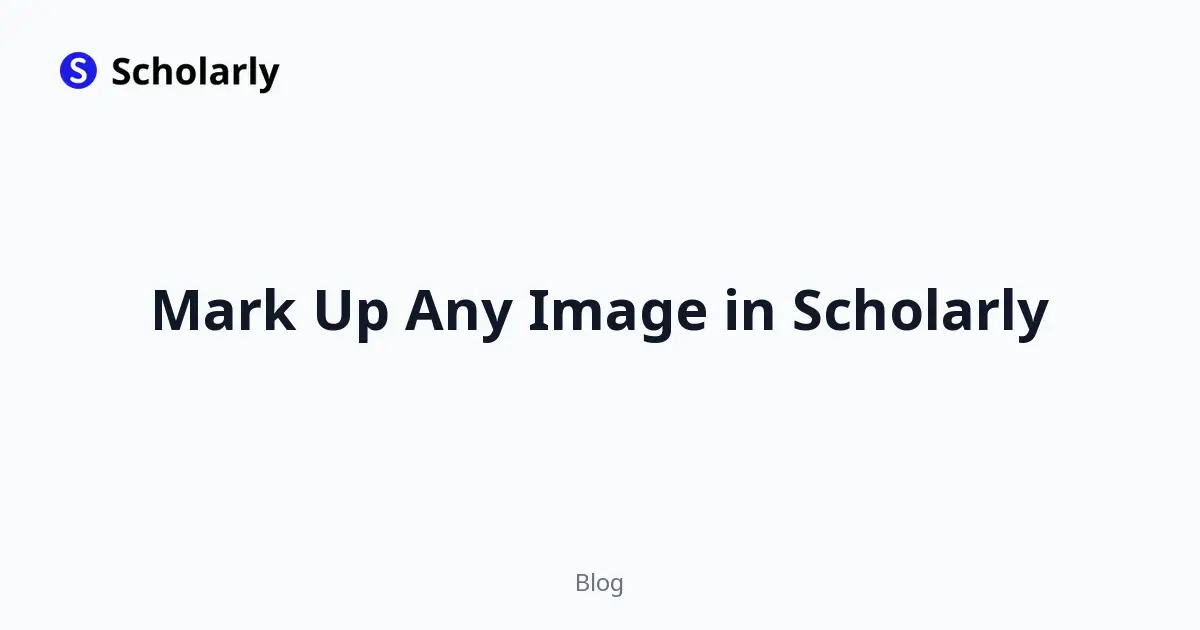
Most questions about an image are about one part of it. The dip in a chart, one organelle in a diagram, the step in a worked solution where the numbers stop adding up. Until now you had to describe where that part was ("the second curve from the left, just under the label") and hope the answer landed on the right spot.
Now you can draw on the image instead. Every image in Scholarly opens in the same markup editor: an image you are about to send, an image already in a conversation (including ones chat made or found for you), an image in your files, and every image in Image Studio. Circle the part you mean, add an arrow or a few words, and send it.
Mark up an image before you send it
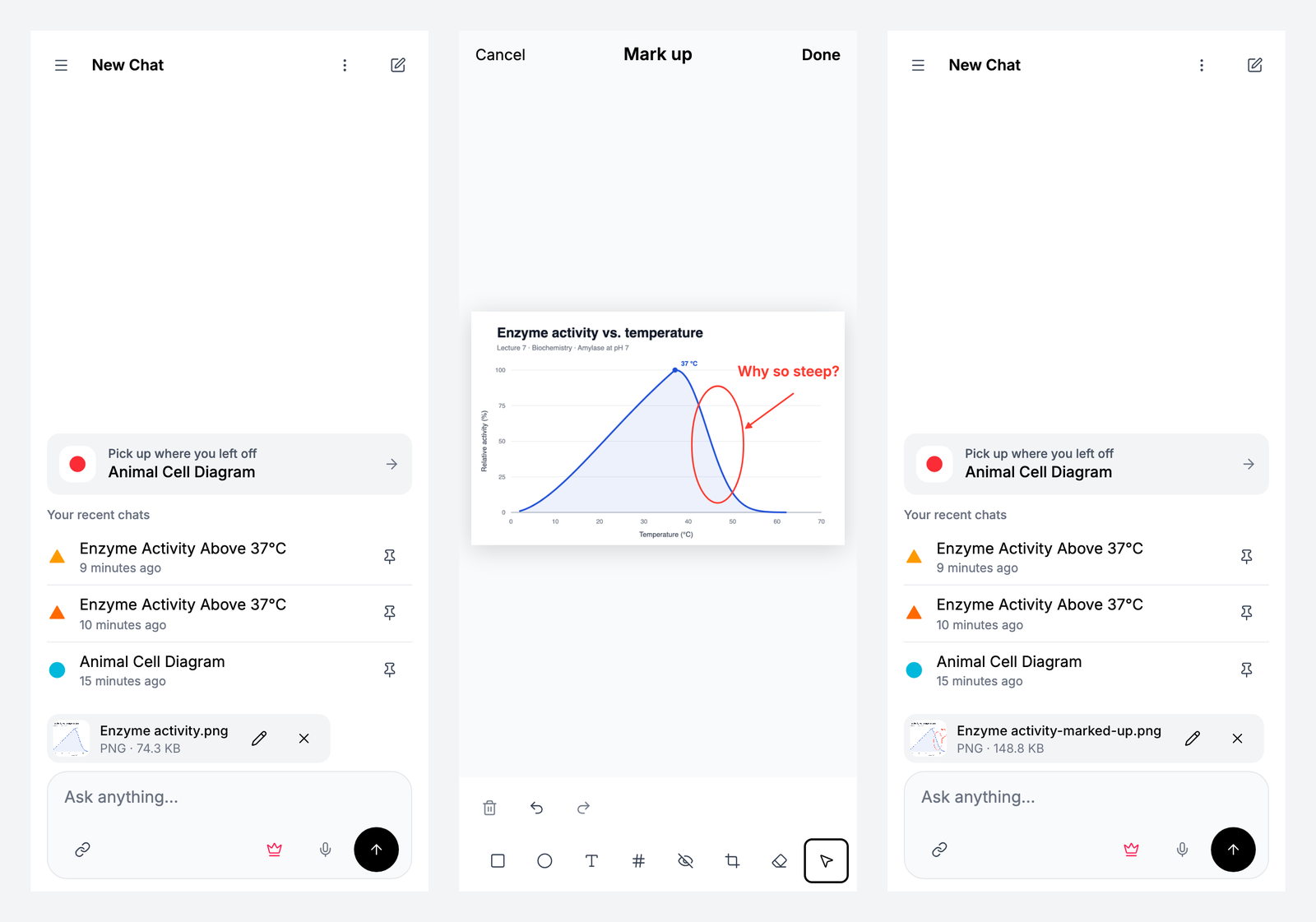
Attach an image in chat and a pencil appears on its chip, next to the remove button. Press it and the image opens full screen with the tools along the bottom.
- Pen and highlighter for freehand marks and for picking out a line of text.
- Arrow, box and circle to point at one thing. Hold Shift for straight arrows, squares and circles.
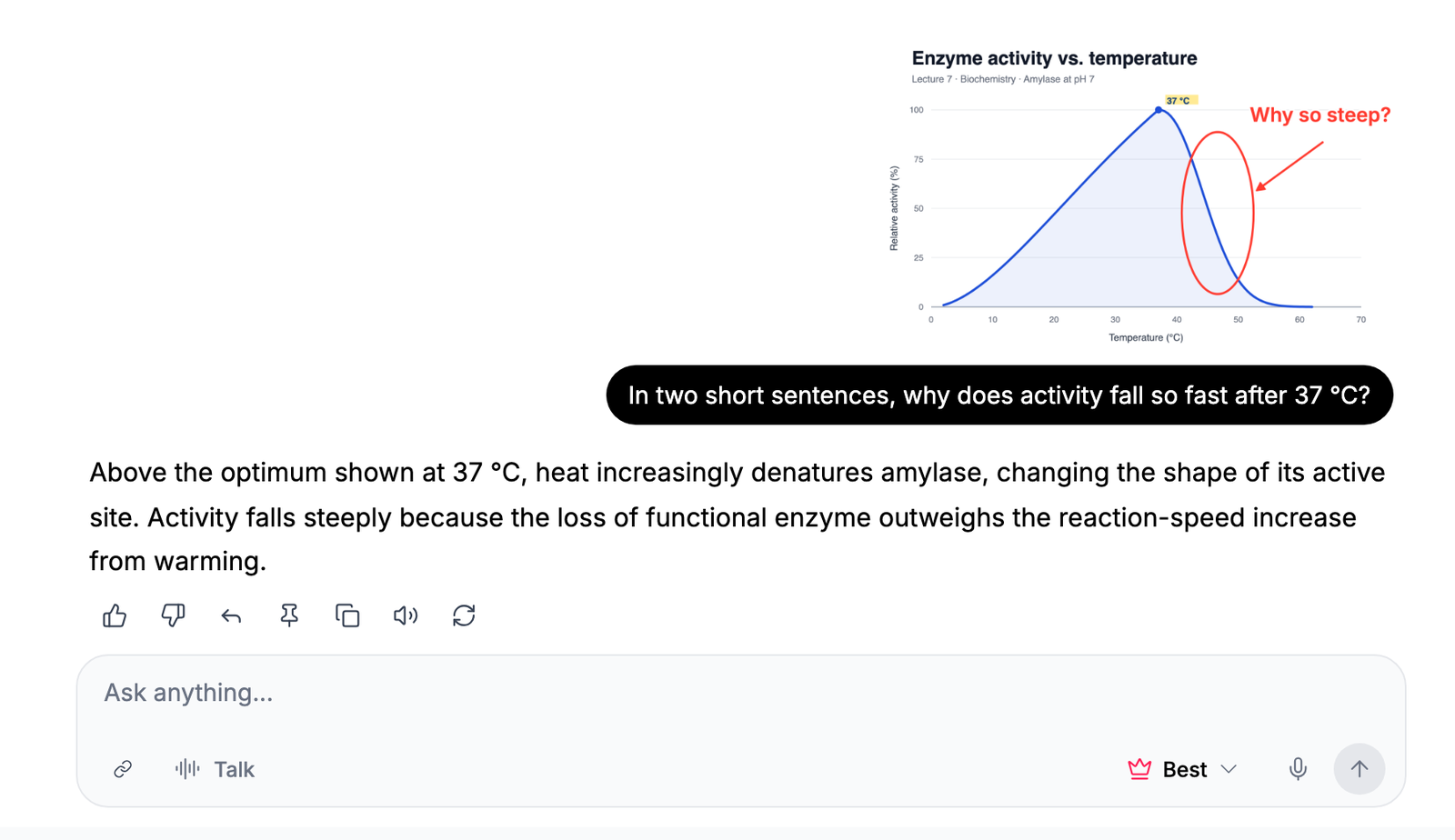
- Text to write the question right on the image, like "Why so steep?"
- Numbered markers that count up on their own, for "steps 1, 2 and 3".
- Hide to pixelate a name, an email address or a student number before you share a screenshot.
- Crop to keep only the part that matters, and Eraser to remove a mark.
Six colors and three sizes cover most needs, and you can pick any mark later to move it, recolor it or delete it. Undo and redo work for everything. Press Done and the marked-up copy replaces the original in your message, named after it (so Enzyme activity.png becomes Enzyme activity-marked-up.png).
The answer then starts from what you marked. In the example above, the reply goes straight to the circled drop-off after 37 °C and explains denaturation, without a paragraph about the rest of the chart.
Ask about one part of an image in the conversation
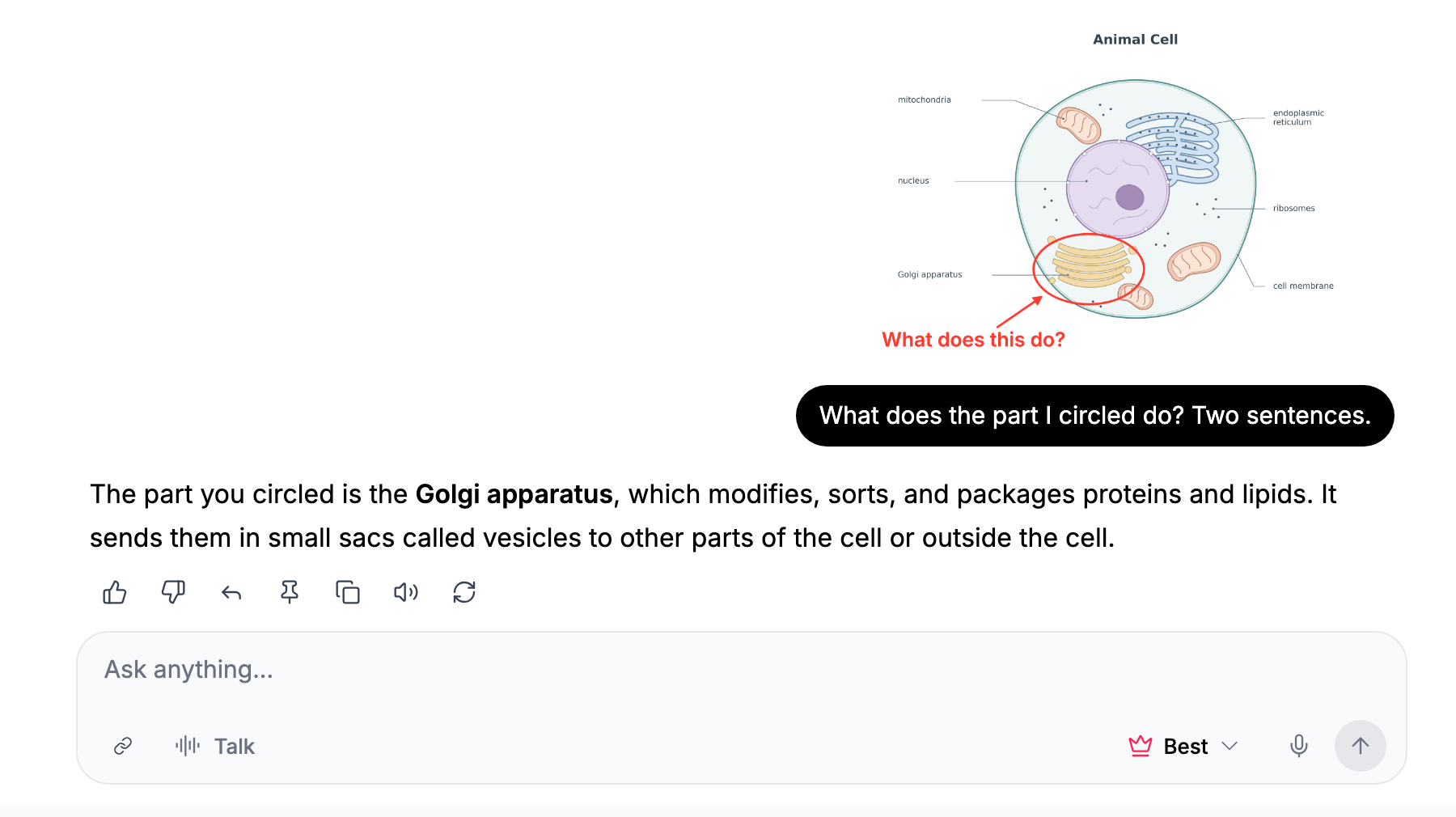
Images already in a conversation work the same way. Open any of them, including a diagram chat drew for you or a picture it found on the web, and press Mark up. When you are done, Add to chat attaches the marked-up copy to your next message and puts the cursor in the message box, so you can type your question straight away.
This is the quickest way to study from a diagram. Ask chat for a labelled cell, circle the structure you keep mixing up, and ask what it does. Or circle a step in a worked solution and ask why it follows from the line before.
Show Image Studio the change you want
Describing an edit in words works for simple changes. It is harder when the change belongs in one exact place. In Image Studio you can now draw the change instead: press the pencil beside the edit bar, mark the image, and add a short instruction if you like.
Here, a water cycle diagram was missing Condensation. Circling the clouds, writing the word and asking for "the same style as the other labels" produced a new version with the label in place and in the diagram's own lettering. Studio sends your drawing to the model as a guide next to the clean original, so your red marks show it where and what to change but never end up in the picture. Every edit is a new version, and Compare shows the two side by side.
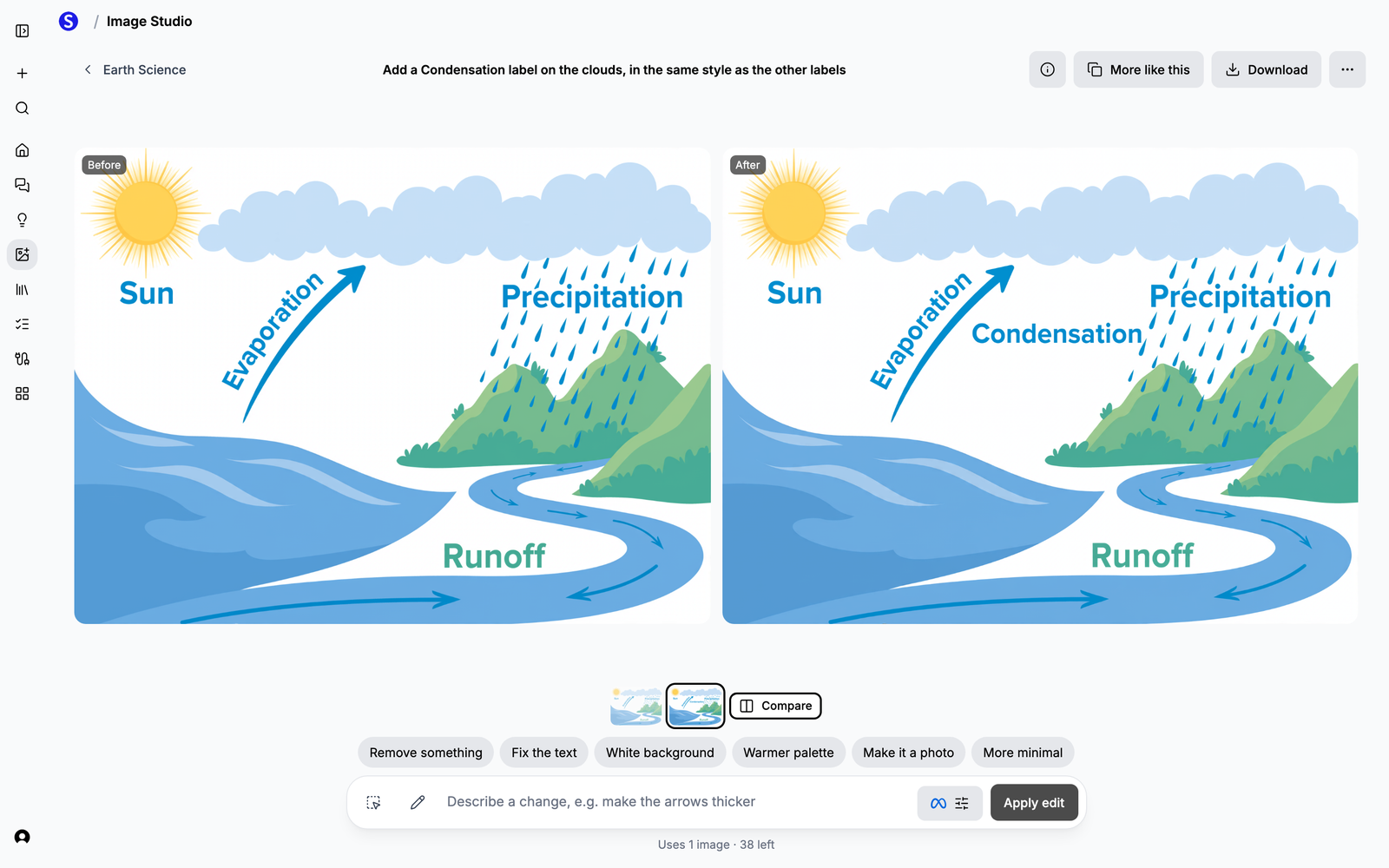
Crop and Hide are not offered in Studio, because the guide has to keep the original's frame and a pixelated patch would read as a request to change that area.
On your phone
On a phone the editor has its own layout. Cancel and Done sit at the top, the tools and colors sit at the bottom within reach of your thumb, and you draw with your finger. Pinch to zoom in on small details and drag with two fingers to move around.
Details
- What you send is what you see. The marked-up copy is a new image at full quality (photos stay JPEG, screenshots and diagrams stay PNG), and your original is never changed.
- Shortcuts on a computer. P pen, H highlighter, A arrow, R box, O circle, T text, N numbered marker, B hide, C crop, E eraser and V to select. Command or Control with Z undoes, and Delete removes the selected mark.
- Plans. Markup is included on every plan. Sending a marked-up copy works like attaching any other image, and an Image Studio edit uses one image from your image allowance, the same as a typed edit.
Try it on something you are studying
Take a screenshot of a slide, a chart or a page you are stuck on, attach it in chat, press the pencil and circle the part you want explained.
Open chat, read more about image markup, or see plans and pricing.