Image Studio, Rebuilt Around Your Projects
Image Studio now works inside your projects: ideas from your own documents, images saved to the project, and a cleaner editor.
Most images you make for work or study belong to something: a course, a client pitch, a training module, a chapter you are revising. Until now, Image Studio did not know that. Every image landed in one long gallery, and you had to describe your material from scratch each time.
Image Studio now starts from your projects. Open one and Studio works inside it. It reads the documents you already keep there and suggests images grounded in them, then saves everything you make back to the project's files.
Open a project, see what it could become
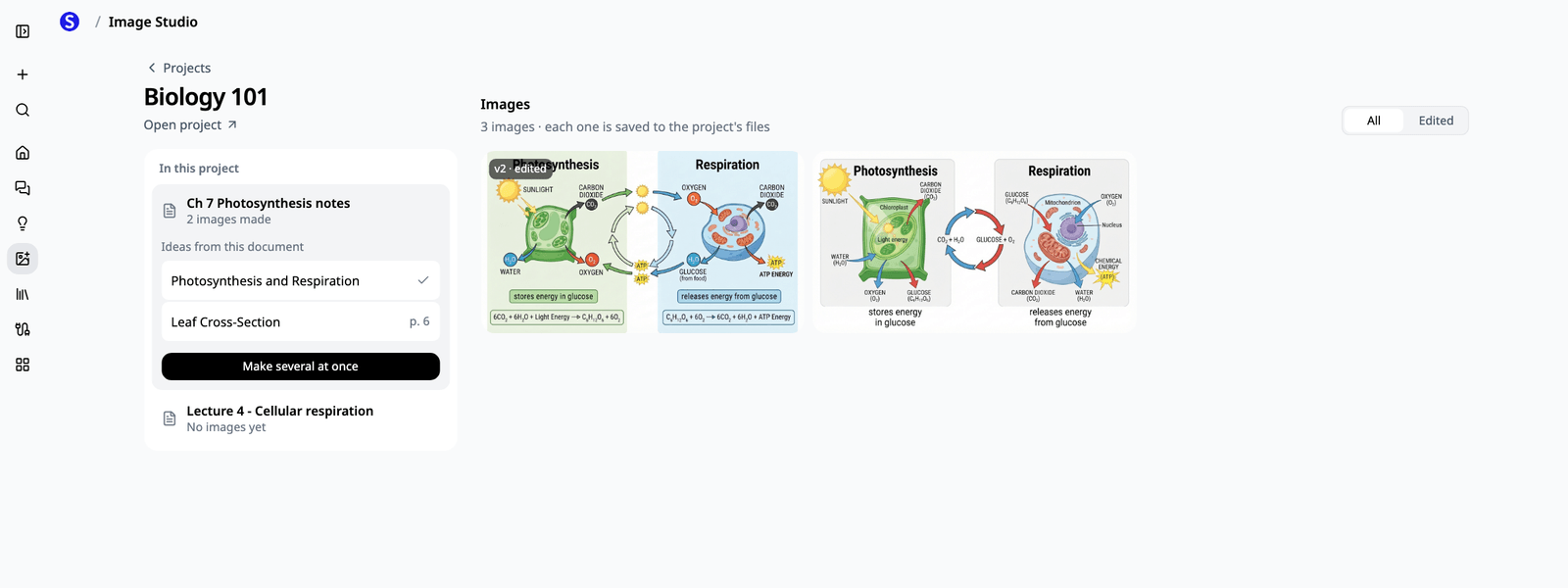
Image Studio opens on your projects, each with its newest images as a cover. Open one, and on a computer its PDFs and documents sit beside its images.
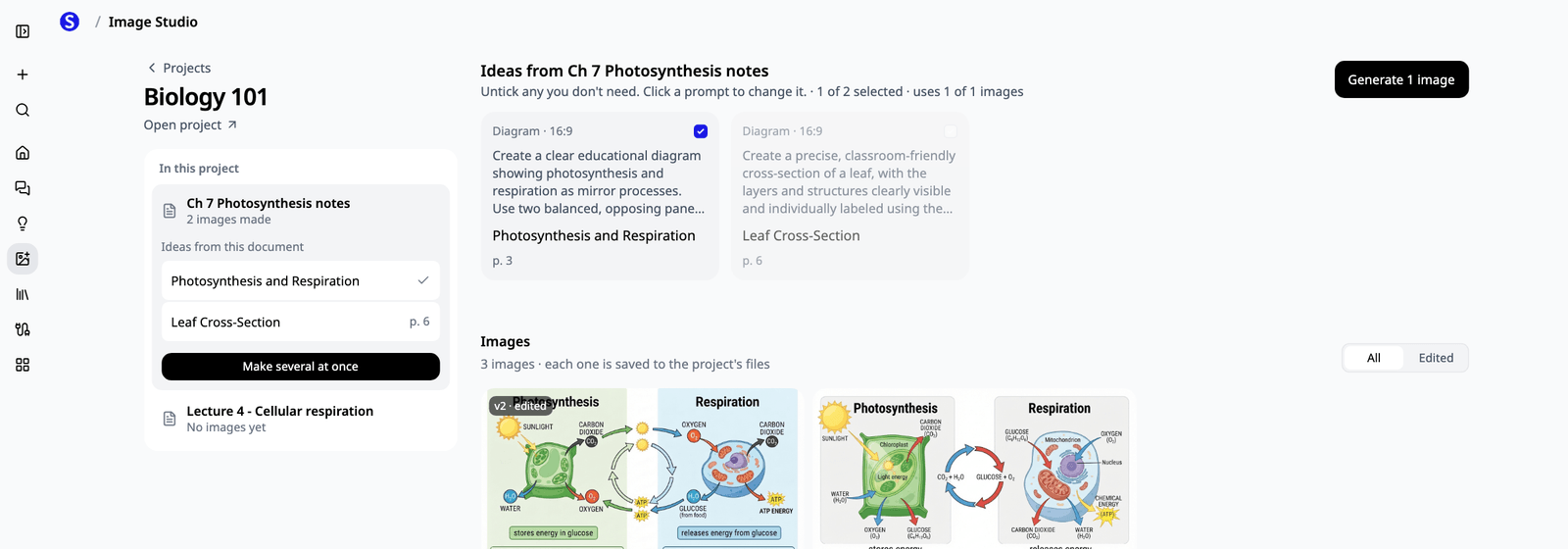
Pick a document and Studio lists ideas for images taken from its pages: a diagram of a process, a cover, a labelled cross-section, a comparison. Each idea cites the page it came from, such as Leaf cross-section · p. 6, and uses the document's own terms.
- Click an idea to make it. The image starts straight away and keeps its citation, so you can always find the page behind a picture.
- Make several at once. Open every idea from a document together, untick the ones you don't need, adjust any prompt, and generate them in one go. You can also say what the images are for, like "a revision sheet, one per topic" or "a new-hire course, one per module", and Studio suggests a fresh set of ideas.
- Ideas are worked out once per document. Coming back to a document shows its ideas instantly, and suggesting ideas never uses your image allowance.
A project with no documents yet offers a few starting points instead, and a link to add one. You can always type your own prompt in the bar at the bottom, too.
Everything you make lands in the project
Every image made inside a project, including edits and alternatives, is saved to that project's files once it finishes. It sits next to the documents it came from, ready to use in your slides, pages, or anything else in the project. Quick images made outside a project are still kept together under Not in a project.
An editor that gets out of the way
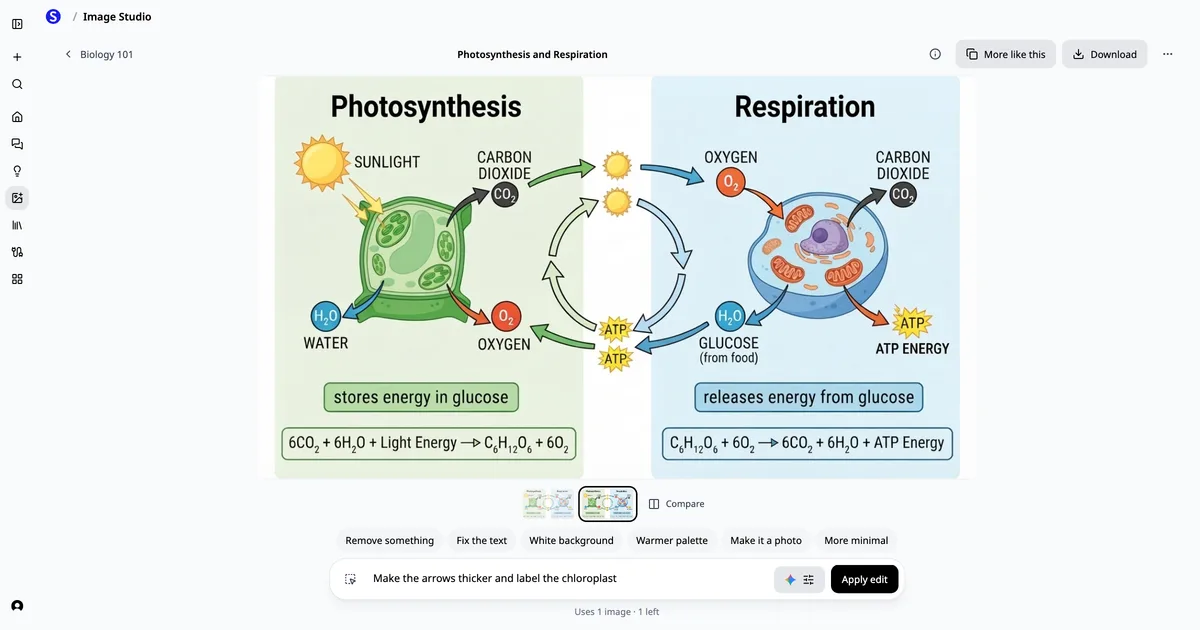
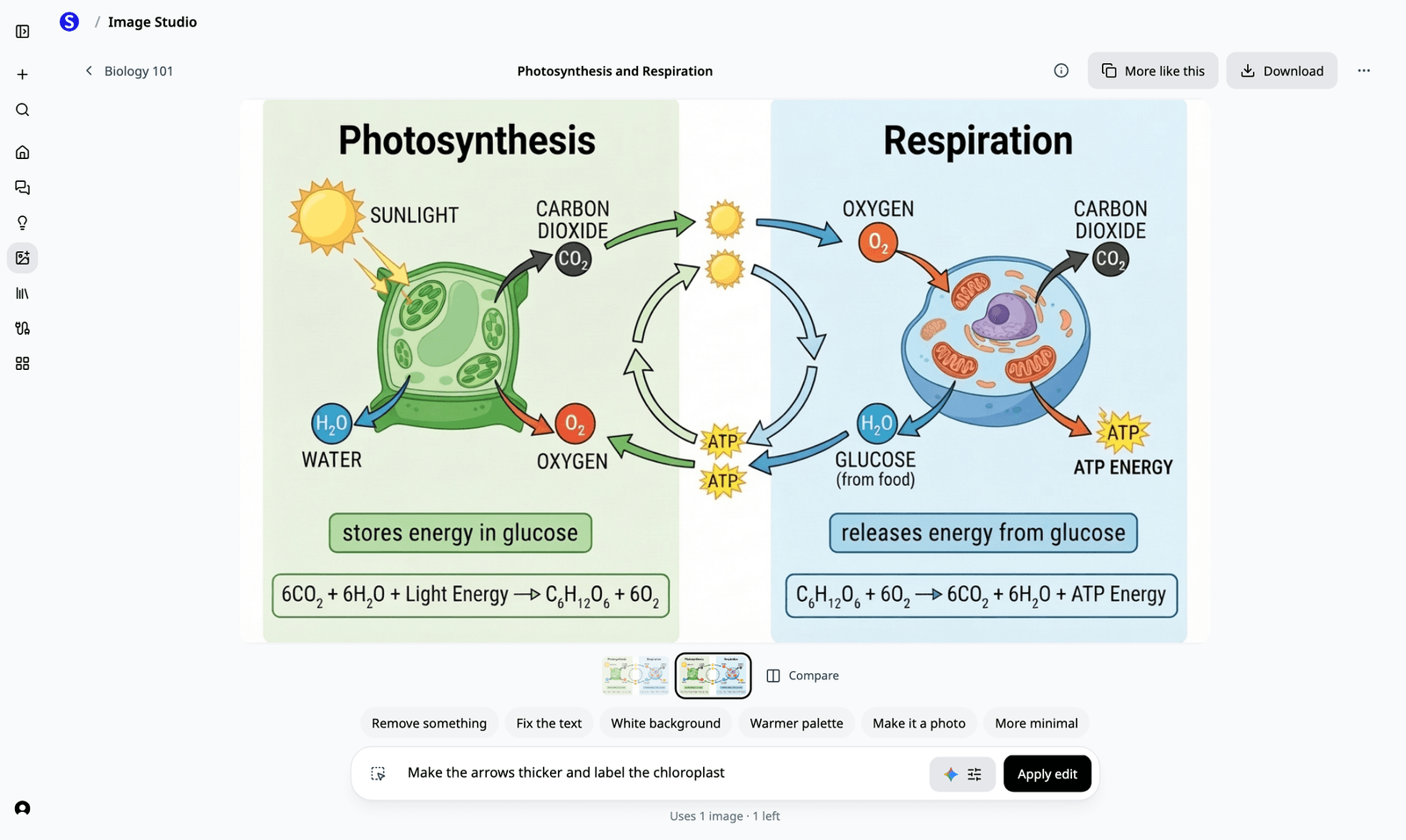
Click any image and it fills the screen. Nothing scrolls, and there are no side panels or tool tabs to work through.
- One edit bar. Type the change, like "make the arrows thicker and label the chloroplast", and press Apply edit. Each edit becomes a new version, and the earlier ones stay.
- Change only part of an image. Press the area button at the left of the bar, drag over that part of the image, then describe the change.
- One-tap edits. Remove something, Fix the text, White background, Warmer palette, Make it a photo and More minimal fill in an instruction you can adjust before applying.
- Versions and Compare. Once an image has more than one version, a strip under it lets you step back, and Compare shows before and after side by side.
- More like this makes a few alternatives, and Download sits right beside it.
The prompt, the model, and the source page are one click away under the info button, and Reuse prompt puts a prompt back in the bar.
Allowance and plans
Image Studio still shares its image allowance with image creation in AI Chat, separate from AI Creation Credits. Each image or edit uses one image. Suggesting ideas from a document is free, and failed images return their allowance automatically.
| Plan | Image allowance during beta |
|---|---|
| Free | 2 lifetime images, no reset |
| Premium | 40 per week |
| Laureate | 80 per week |
Image creation is in beta, and these allowances may change.
Try it on a document you already have
Open a project with a lecture, a handbook, a report or a chapter in it. Then open Image Studio, pick that document, and look at what it suggests.
Open Image Studio, or see plans and pricing.