Explore 3D Models in Your Video Lectures
Video lectures can now include interactive 3D models you can explore, included on Premium and Laureate with no extra credits.
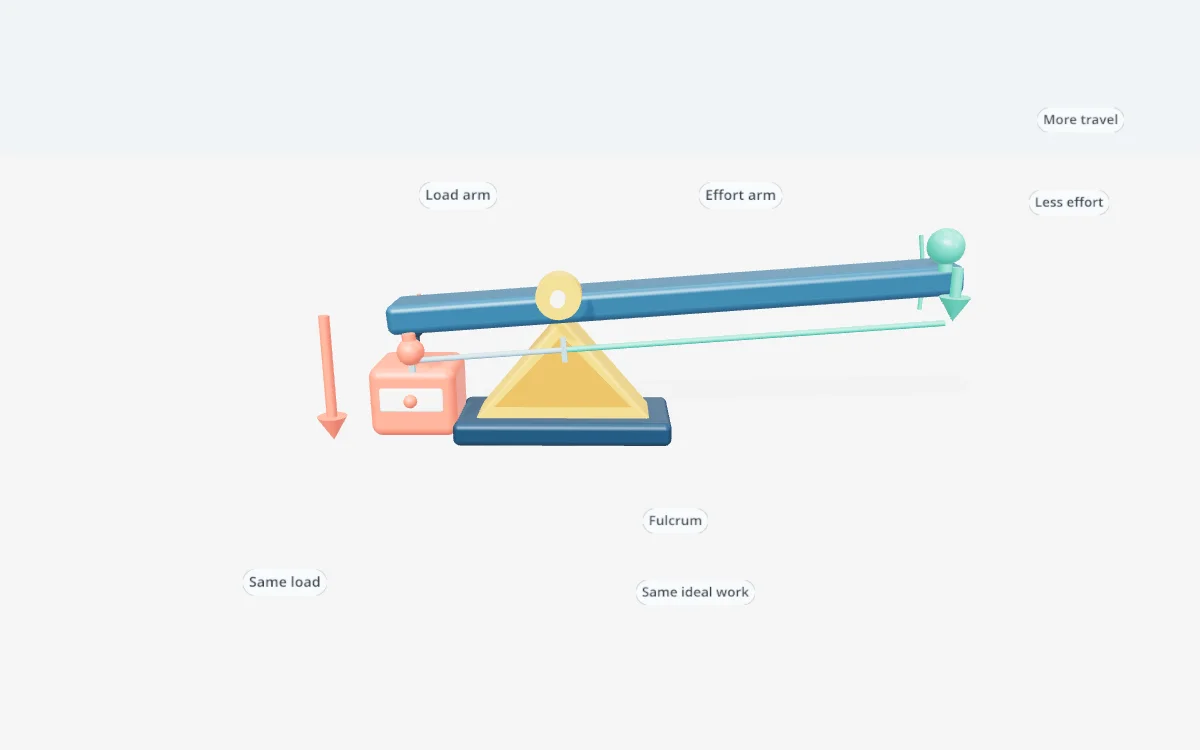
A diagram can show where the parts of a machine sit. A moving model can show how they work together. Now your Scholarly video lectures can include 3D models, with a way to open and explore those same models below the video.
Add 3D models is on by default for Premium users, including Laureate. Scholarly chooses up to five models when they help explain your material. It can also choose none. The video costs the same number of AI Creation Credits with this option on.
Watch the explanation, then explore it
Start with your notes, a PDF, a recording, or a topic, and create an AI Video Lecture as usual. When a spatial explanation would help, Scholarly builds a model and integrates its visuals into the lesson.
For example, a lecture about simple machines can show a lever balancing a load, a pulley changing the direction of a force, and gears turning together. In Freestyle videos, these models can appear as animated clips. Standard videos use model stills in their slides.
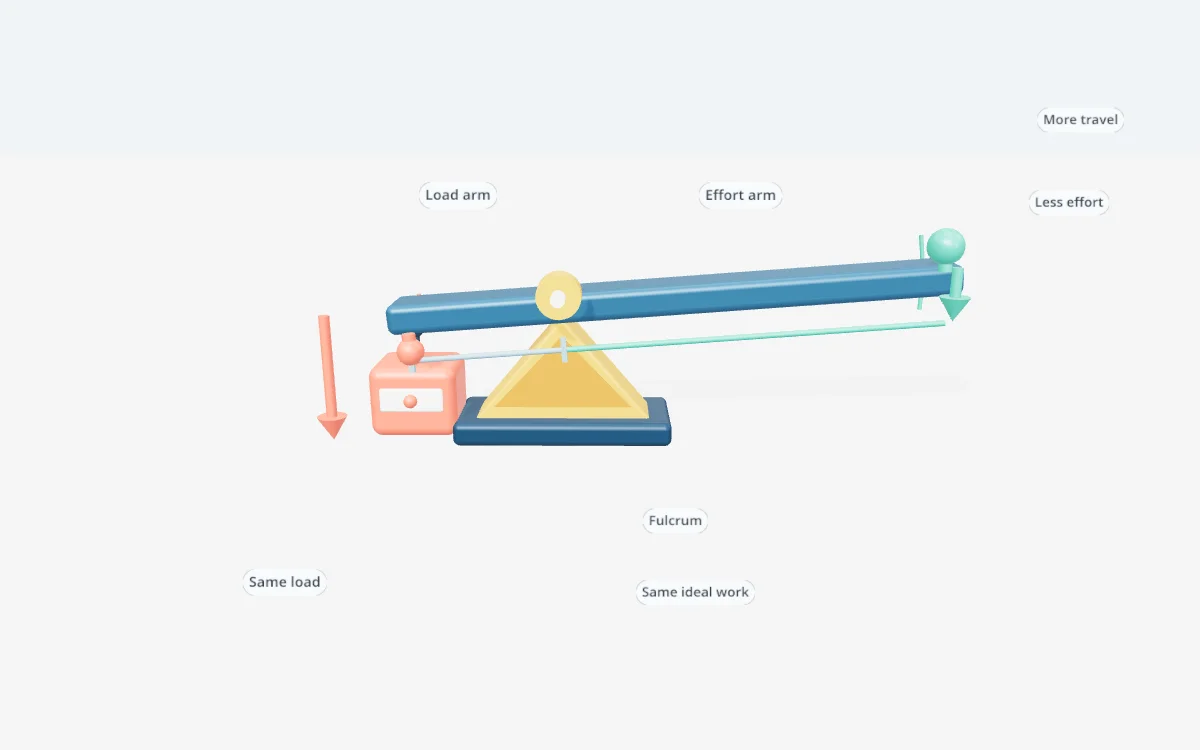
Below the finished video, a compact stack lists the models that actually appear in the lesson. It follows playback so the model being discussed comes to the front. You can also browse the stack yourself.
Choose View in 3D to pause the video and open the model. Rotate the view, inspect its shape, and try the controls the model provides. Use its appearance time to return to that moment in the lecture.
Useful models, not a quota
Some subjects benefit from seeing depth or motion: geometry, a mechanical assembly, a molecular arrangement, or a physical process. Others are clearer with a chart, an equation, a source figure, or a few well-chosen words.
Scholarly considers the topic and the length of your video before adding 3D. A short explanation may need one focused model. A longer lesson comparing several mechanisms may benefit from more. Five is the maximum, not the target, and the same model can be reused across the lesson.
A video about essay structure or historical dates may have no 3D models at all. Leaving the option on gives Scholarly permission to use them where they help; it does not require every video to include one.
How to try it
- Open Scholarly and choose AI Video Lecture.
- Add your material or describe what you want to learn.
- In customization, leave Add 3D models on. Premium and Laureate users start with it enabled.
- Create the video. If models are useful, Scholarly builds them in parallel while preparing the lesson.
- Open the finished video and use View in 3D below the player to explore a model.
You can switch the option off before creating. Scholarly remembers your choice for next time. Existing videos stay as they are; the option applies when you create a new lecture.
Included with Premium
Interactive 3D models in video lectures are a Premium feature, also included with Laureate. They add no extra AI Creation Credits, whether a video uses one model or five. Your usual video creation cost still applies.
Try a topic where seeing the shape or movement would help you understand it. The goal is a clearer explanation, with something you can explore after watching.