3D Models Now Work Right Inside Chat
Ask for a 3D model in any Scholarly chat. It builds while you keep working, then chat replies in the same conversation with a model you can turn around.

Some questions have a shape. How the chambers of a heart connect, how the four chains of hemoglobin pack together, what sits inside a jet engine. A paragraph can describe these things, but it helps to turn them around and look.
3D models used to start in their own workspace. Now you can ask for one in any Scholarly chat, and the model appears in the conversation.
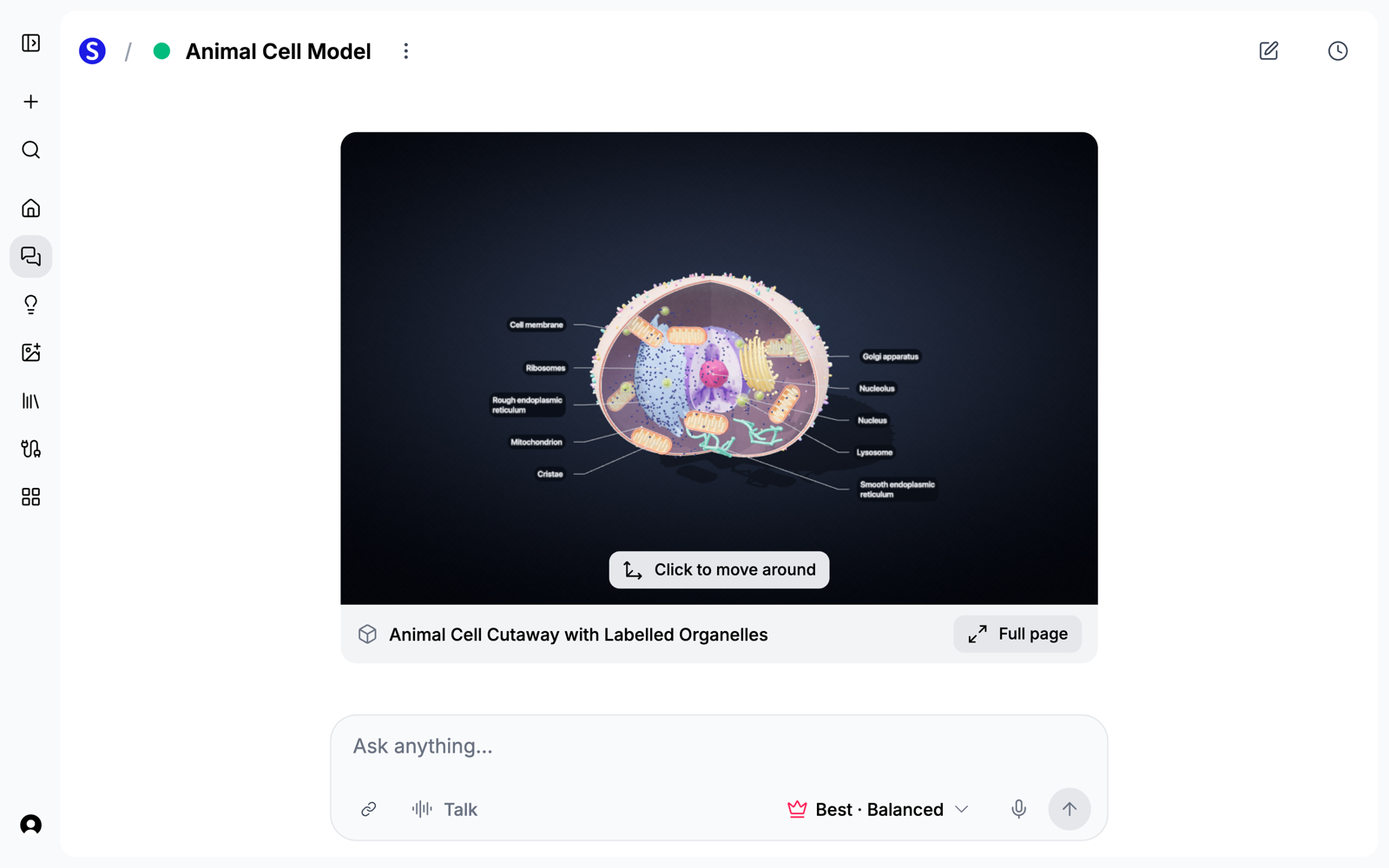
Ask in Any Chat
Say what you want to see: "build a 3D model of an animal cell, cut away to show the organelles". Chat tells you what it plans to build and that it uses 1 AI Creation Credit. Nothing starts until you say yes.
You do not need a file to start. A subject is enough, and so are notes pasted into the chat.
Chat Offers One When It Helps
You do not have to think of it yourself. If you are trying to understand how something physical works, and seeing its shape would make it click, chat answers your question and then offers to build a model.
It stays out of the way the rest of the time. It skips quick facts, and it offers at most once per topic. Ignore the offer and the conversation carries on.
Chat Tells You When It Is Done
A build takes several minutes, and you do not have to wait on it. Keep chatting, or leave the page.
When the build finishes, chat replies in the same conversation to say your model is done, with the model right there in the thread. The card from the start of the build shrinks to a small row, so the same model does not appear twice. If a build does not finish, chat tells you that too, and your AI Creation Credit is returned.
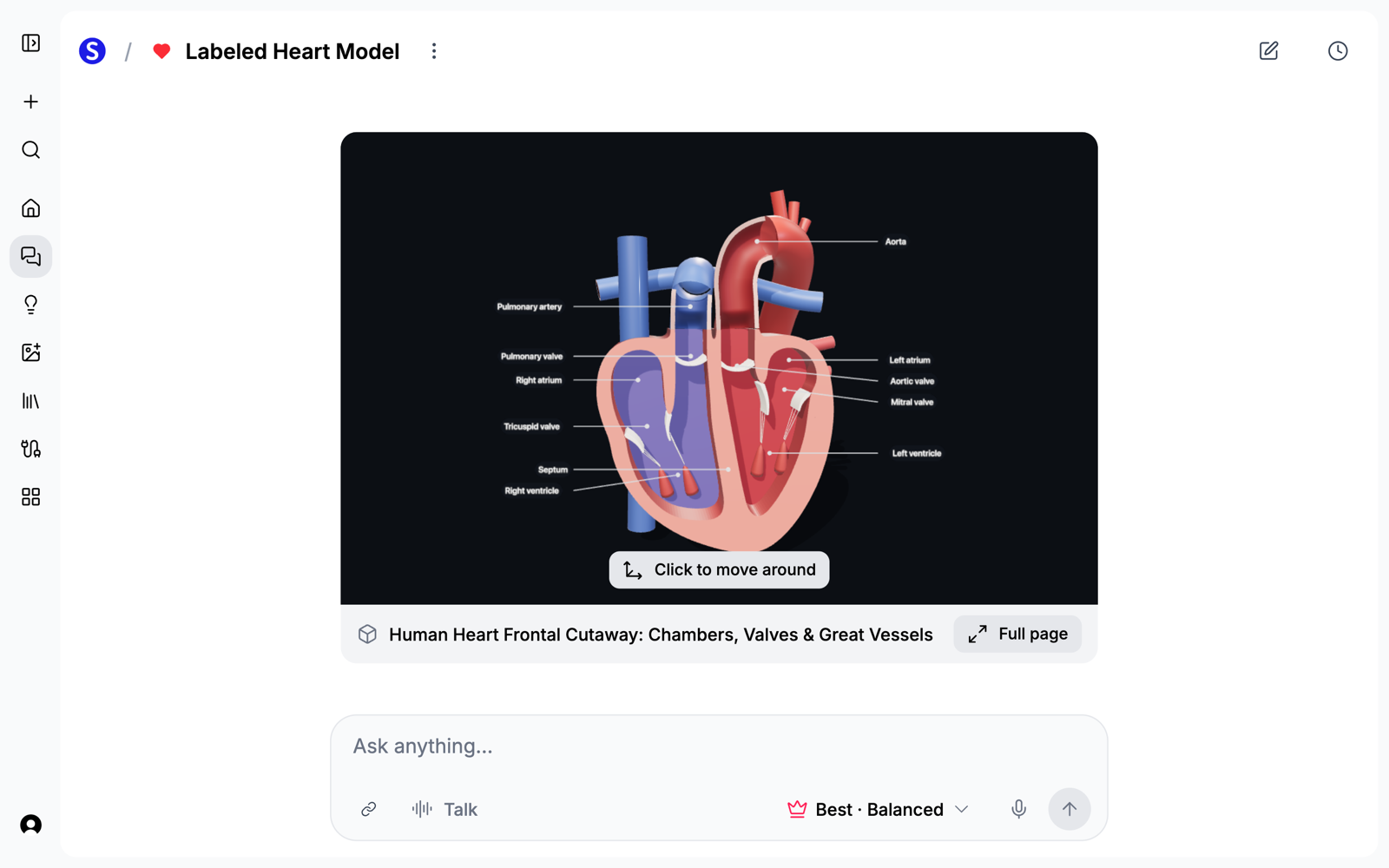
Turn It Around, Then Take It Further
Click the model to move around it. Full page opens it in the 3D workspace with a chat beside it, where you can ask to reword a label, change a color, or speed up an animation. Small edits are free, and each one appears on an approval card before it changes anything.
On paid plans you can export a 4K PNG, a PNG with a transparent background, an 8-second 1080p turntable video, or a .glb 3D file.
On a phone, the model appears as a row in the chat. Tap View in 3D to open it.
What You Can Ask For
Anything with a structure or a mechanism is a good candidate:
- Science: cells, proteins, DNA, anatomy, atoms and physics, and the rest of science.
- Machines and systems: an engine, a pump, a water treatment plant, or the tiers of a cloud application.
- Your own material: on Home, open the 3D model tab and start from a PDF, so the labels use your document's words. PDF to 3D model shows how that works.
For a walkthrough of the science subjects, read How to See Proteins, Cells, and DNA in 3D.
What to Keep in Mind
3D models are still in Beta, and these limits still apply:
- Models explain. They are not measurements. A hemoglobin model shows how the subunits and heme groups are arranged. It is not loaded from Protein Data Bank coordinates, and Scholarly does not open DICOM scans.
- Check what matters. The AI can still get a label wrong, so look a model over before you study from it or put it in front of a class.
- There is no manual 3D editing or 3D printing. You change a model by asking chat, and there is no STL or OBJ export.
How to Try It
- Open Scholarly and start any chat.
- Ask for a 3D model of what you want to see, and confirm the build.
- Keep working. Chat will reply when the model is ready.
For the full picture, see the 3D models feature page.