Talk to Scholarly, and It Does the Work
Voice in chat can now use every tool that chat has. Ask out loud for flashcards, a search, or a saved note, and it happens in the same conversation while you keep talking.
Some things are easier to say than to type. "Remember that my biology exam is on the twelfth." "Make flashcards from the lecture I just recorded." "What did my notes say about the Krebs cycle?"
Until now, voice could answer questions, but anything that took real work ended the conversation. It wrote your request into the chat box and asked you to press send. That gap is gone. Press Talk, say what you want, and voice carries it out itself.
Ask Out Loud
Voice now has the same tools as text chat: your library, web search, memory, saved preferences, connected apps like Notion and Dropbox, and every creation Scholarly makes. Say what you need and it finds the right tool on its own.
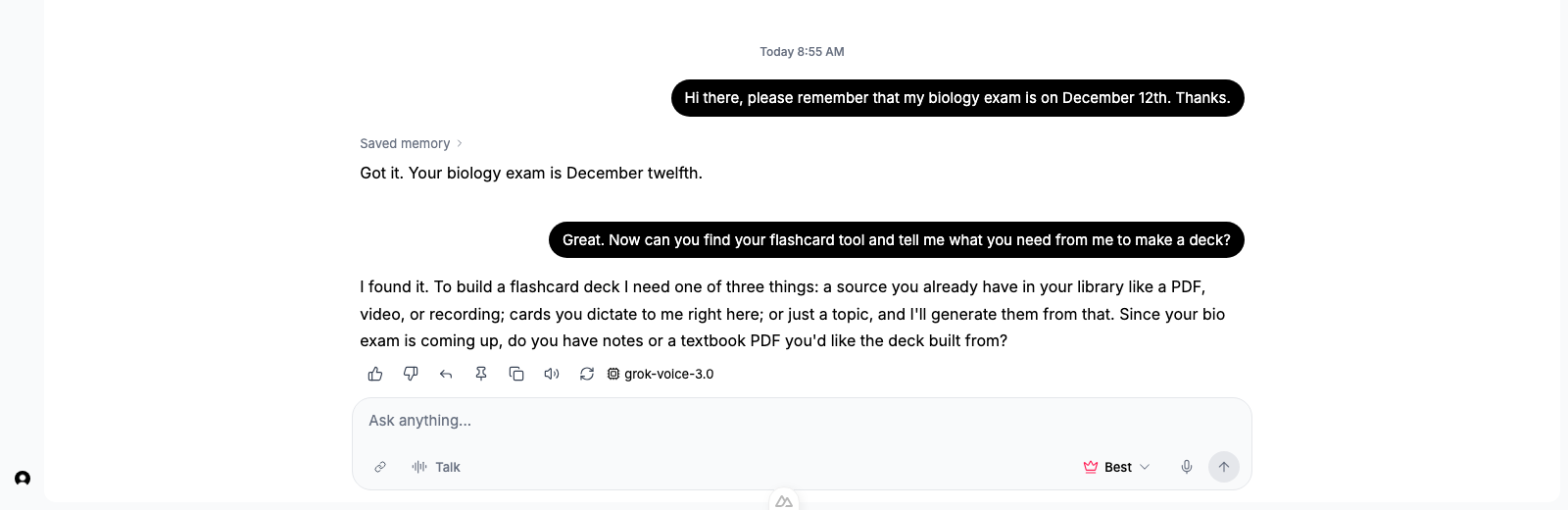
- "Remember that my exam is on December twelfth" saves a memory you can read and edit in Settings.
- "Find your flashcard tool and tell me what you need" loads the creation skill and explains what it needs from you: a source in your library, cards you dictate, or just a topic.
- "Make a study guide from this PDF" starts the creation while you keep talking. Longer work, like a video lecture or a podcast, runs in the background and arrives in the same chat when it is ready.
You do not have to know what the tools are called. Describe the outcome and voice works out the rest.
It Knows What Chat Knows
Voice reads the same instructions, sources, and history as text chat, so you never have to repeat yourself.
- The file or page you have open is part of the conversation. Ask about "this chapter" and voice knows which one.
- Memories you saved earlier, your preferred document format, and your custom instructions all apply.
- Earlier messages in the thread, typed or spoken, are in context. Switch between typing and talking in the same chat without losing anything.
Results Stay in the Chat
Every action voice takes is saved as a card in the conversation, next to the spoken answer. Saved memories, loaded skills, search results, and finished creations all stay there after you end the session or reload the page.
If voice needs a decision from you, it shows the same question card chat uses. Click an answer or type a reply, and the voice session continues.
Interrupt Whenever You Like
Start talking and voice stops speaking right away. Actions that have not started yet are dropped. An action that already started still finishes and saves its result, so you never lose a creation because you cut in. If an action's outcome cannot be confirmed, voice tells you to check the saved result instead of quietly running it again.
What to Keep in Mind
- Voice hears audio and reads text. It can read the text of a PDF, but it cannot look at an image or a chart. If a question needs a picture, it will say so and ask you to describe it.
- Allowances are unchanged. Voice minutes come from your plan's voice allowance, and a creation costs the same AI Creation Credit it costs in chat.
- Reload open tabs. A chat tab opened before this update keeps the old voice mode until you reload it.
How to Try It
- Open Scholarly and start any chat, or open a file and chat beside it.
- Press Talk in the composer and say what you want done.
- Keep talking. The results appear in the chat as they finish.