Schedule AI Work for Later with Scheduled Tasks
Scheduled Tasks lets you choose a one-time start date for research, reports, study materials, presentations, audio, video, and other long-running AI work.
The useful time to ask AI for something is not always the useful time to have it start.
You might want a research report to begin after you finish adding sources, a training deck to run overnight, or tomorrow's study materials to be ready when you sit down. Until now, creating that work meant starting it immediately. You could leave it running in the background, but you could not decide when the background work should begin.
Today we are adding Scheduled Tasks to Scholarly.
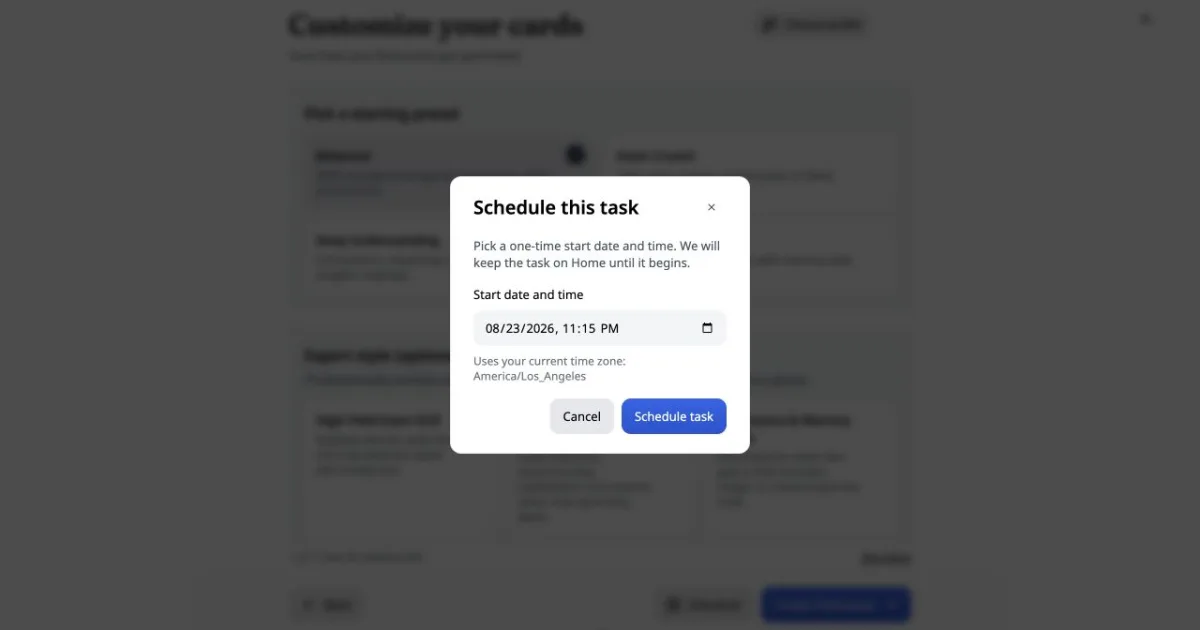
Pick a future date and time, finish the same create flow you already use, and Scholarly holds the task until then. This first version is deliberately simple: every scheduled task runs once. There are no recurring rules, weekly schedules, or calendar syntax to manage.
Schedule from any create window
The final step of Scholarly's AI creation windows now has two choices: start the work now, or schedule it for later.
Scheduled Tasks works across the long-running creation tools, including:
- Deep Research
- Flashcards and quizzes
- AI Documents, reports, worksheets, study guides, and other file agents
- Slides and infographics
- Podcasts and Text to Speech
- AI Video Lectures
Choose Schedule, select a date and time in your current time zone, and confirm. The task is created with the sources, settings, model, instructions, and Project context you already selected. Scheduling changes when the work begins; it does not ask you to rebuild the request later.
Ask for a scheduled task in chat
Chat can schedule the same asynchronous work too. Ask for the artifact you need and include when it should begin. The scheduled task stays attached to the conversation, where you can see its start time and choose Run now without leaving the chat.
That matters for work that starts as a discussion. You can talk through a research question, settle the scope, and schedule the resulting report from the same conversation instead of moving the brief into another tool.
Upcoming work stays visible on Home
Deferred work should not disappear into an invisible job queue.
Home now includes a Scheduled tasks list with every one-time task that has not started yet. Each row shows what will run and when. Once the task begins, it moves into Scholarly's normal background-task flow, where progress and the finished result appear as they do for work started immediately.
You do not need to keep the tab open. The schedule and the task live with your Scholarly account, not the browser session that created them.
Projects have their own Scheduled Tasks view
If a task belongs to a Project, it also appears inside that Project's new Scheduled Tasks view.
This keeps upcoming work beside the material and goal it belongs to. A report scheduled for a client Project does not get mixed up with tomorrow's exam-prep deck; each Project shows only its own pending scheduled work, while Home remains the account-wide view.
Run it now whenever plans change
A schedule is a plan, not a lock.
Every scheduled task has a Run now action on Home and in its Project. Chat-scheduled work has the same action in the conversation. Use it when a meeting moves forward, you finish reviewing the sources early, or you simply decide there is no reason to wait.
Scholarly safely moves the task from scheduled to processing once, so using Run now does not create a second copy that starts again at the original time.
A few practical examples
Prepare tomorrow's review set. Upload the day's lecture notes, configure a flashcard deck, and schedule it to start after your evening class.
Run a report overnight. Finish the research brief and sources before you log off, then schedule the investigation for later without leaving the browser open.
Stage Project work. Schedule a slide deck, an infographic, and a narrated explanation from the same Project. The upcoming tasks remain visible with the Project until each begins.
Keep control after scheduling. Review the account-wide list on Home and start anything early with Run now when priorities change.
Try Scheduled Tasks
Open any supported create window, finish the setup, and choose Schedule beside the normal create action. Or describe the work and start time in AI Chat.
Explore Scheduled Tasks in the AI workspace, or sign up for Scholarly and schedule your first one-time task.