How to Make a 3D Science Model for Class
You do not need 3D software to show a class the inside of a heart or an atom's orbitals. Here is how to build a labeled science model and get it into your slides.

Some topics are hard to teach or present from a flat diagram: the valves of a heart, the orbitals of an atom, the way the planets sit on their orbits. A model you can turn around helps, but building one has usually meant 3D software and a lot of hours.
In Scholarly, you describe the model in a chat. This guide is for anyone who has to explain science to a room, whether you teach the class or you are presenting to it.
1. Pick One Thing That Is Hard to Picture
Choose the part of the lesson where people usually get lost. A good subject has a structure you can point at:
- Biology and anatomy: a heart, a cell, a synapse, a kidney nephron.
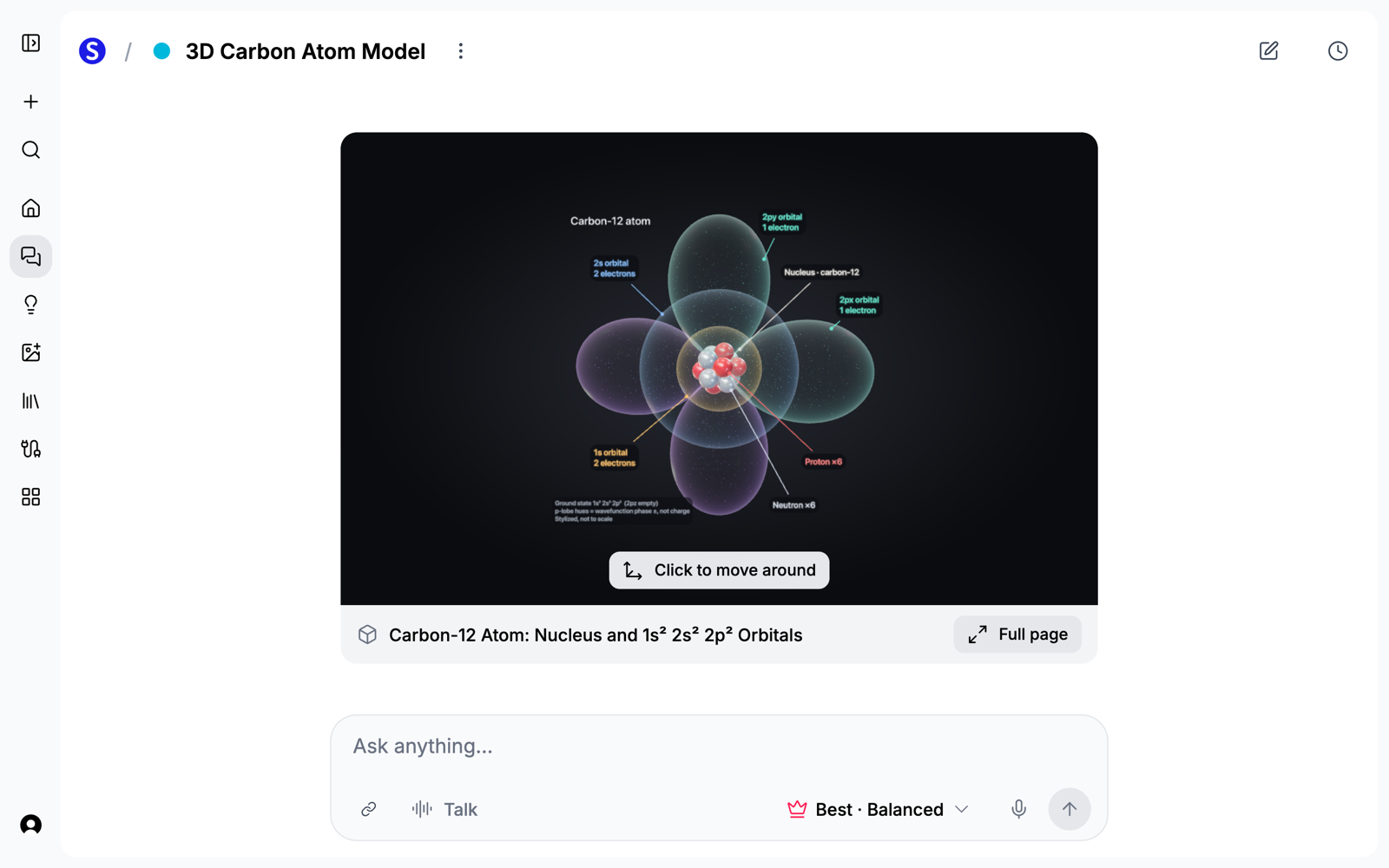
- Chemistry and physics: an atom's orbitals, a molecule, an electric motor.
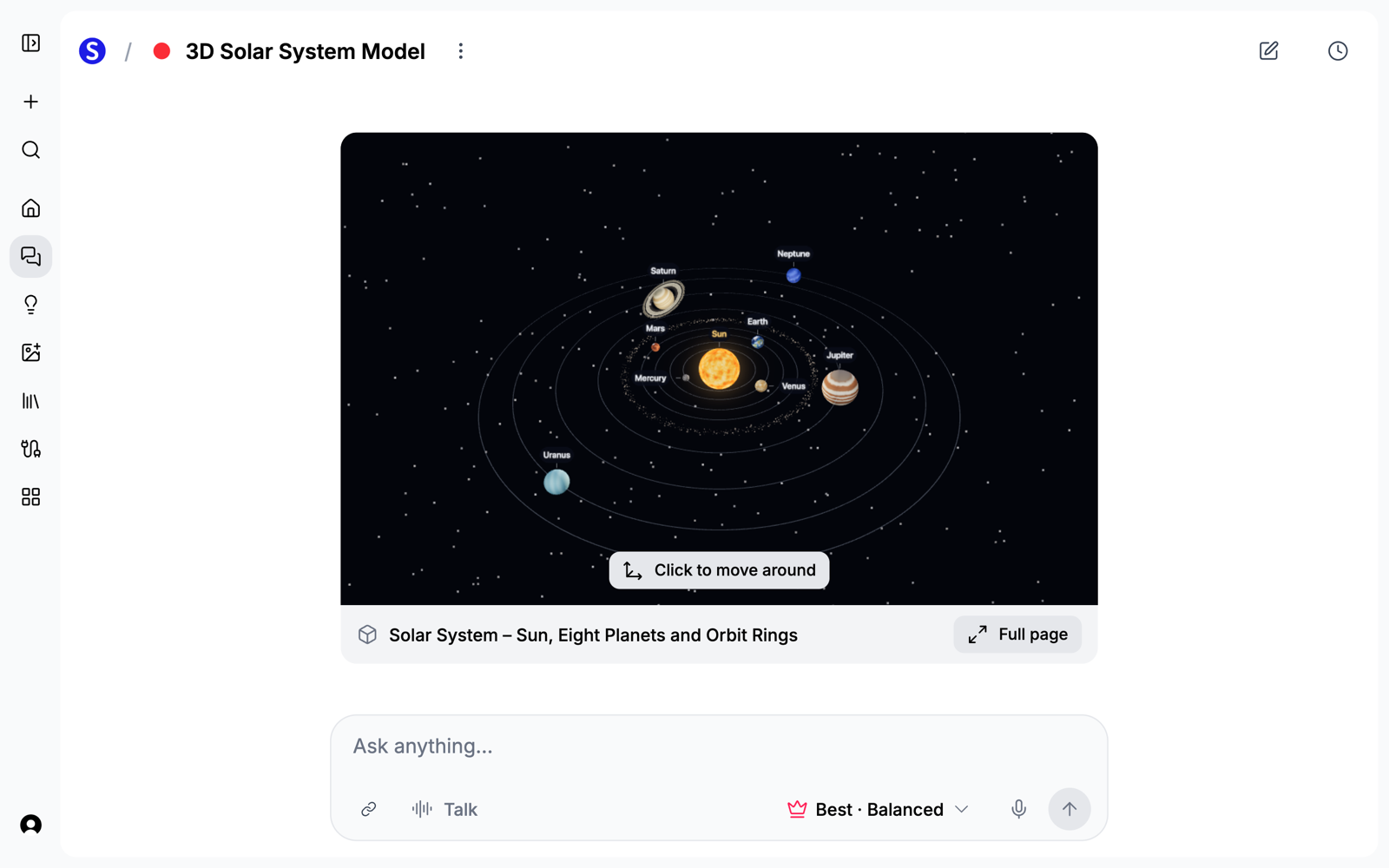
- Earth and space: the solar system, the layers of the Earth, the water cycle.
2. Ask for It in Chat
Say what to show, how to show the inside, and what to label:
Build a 3D model of the human heart, cut in half to show the four chambers and the valves, with the aorta and pulmonary artery, each labeled.
Chat confirms the build first, which uses 1 AI Creation Credit. The build takes several minutes, and you can keep working in the meantime. When it finishes, chat replies in the same conversation with the model.
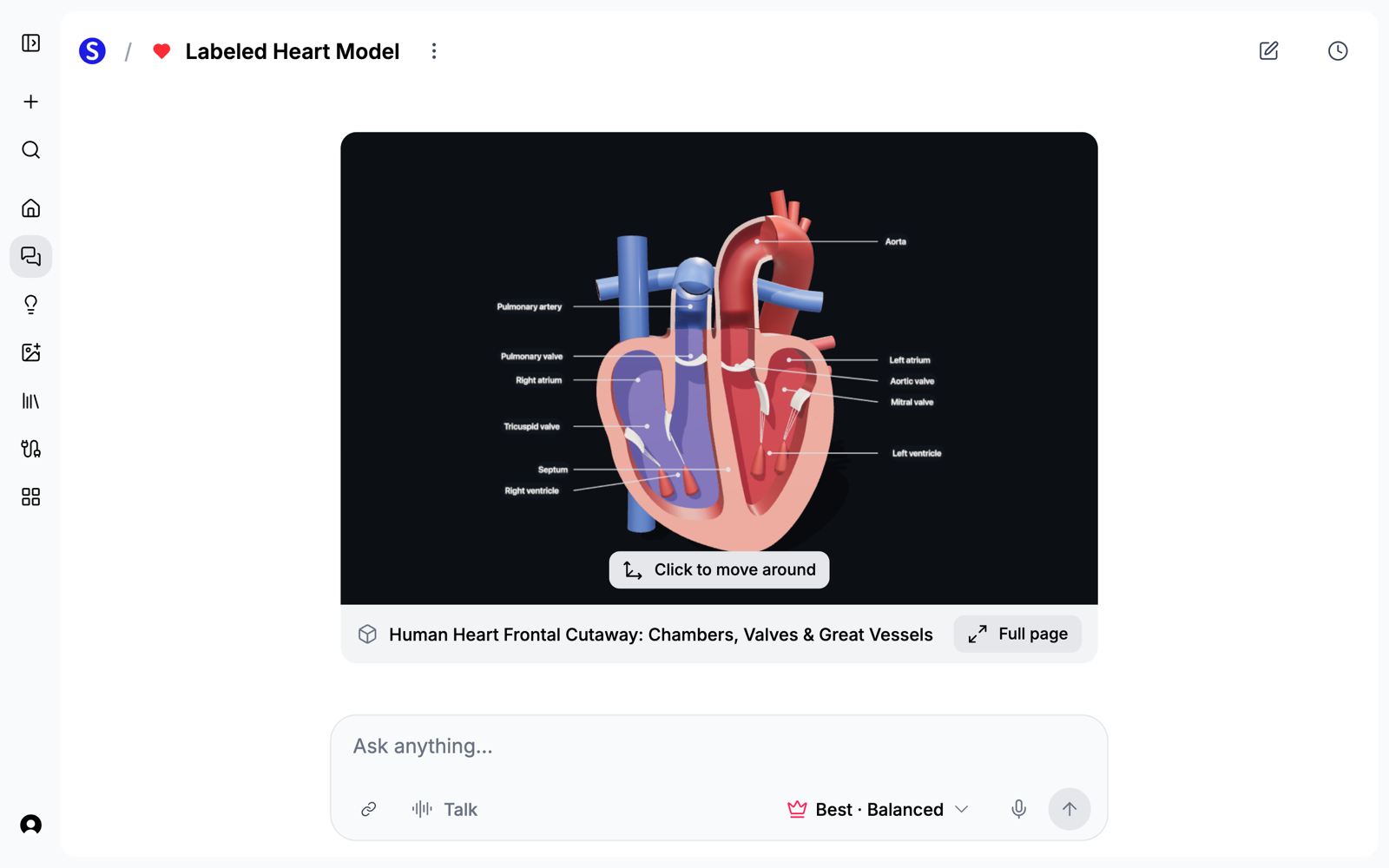
If you are teaching from a specific chapter or handout, start from that PDF instead: on Home, open the 3D model tab and pick it. The labels then use your document's words, which matters when students will be tested on those terms.
3. Fix the Details
Open the model full page and use the chat beside it. Most changes are free small edits: rewording a label, changing a color or a size, speeding up an animation, or changing the background. Each one appears on an approval card before it changes anything, and Undo brings back the previous version.
Read every label at this stage. The AI can get one wrong, and you are the one standing in front of the class.
4. Get It Into Your Lesson
You can present the model live in your browser, turning it as you talk. To put it in a deck or a handout, a paid plan lets you export:
- A 4K PNG, for a slide or a printed handout.
- A PNG with a transparent background, to place on any slide.
- An 8-second 1080p turntable video (MP4), which plays inside a slide without any clicking.
- A .glb 3D file, for PowerPoint versions that support 3D objects and for Blender. Keynote needs a conversion first, so use an image or the video there.
Ideas for the Classroom
- Label it together. Ask chat to turn the labels off, show the model, and have the class name the parts. Then show the labeled version.
- Follow a process. Build the water treatment plant or the path of blood through the heart, then walk through it in order.
- Let students build one. Have each group build a model of one topic, check its labels against the textbook, and present it. Finding what the AI got wrong is a useful exercise on its own.
What These Models Are Not
3D models are in Beta. They explain how something works, and they are simplified to do that. Sizes are often not to scale, and they are not built from scans or measured data. There is also no STL or OBJ export, so they cannot be 3D printed.
Try It
Open Scholarly, start a chat, and ask for the model your next lesson needs. For subject examples, see the AI 3D science model generator, the AI 3D anatomy model generator, and the AI 3D physics model generator. If you are building training material with a team, Scholarly Teams gives you a shared source library and one bill.