How to Turn a PDF Into a Video Lecture With AI
Can you turn a PDF into a narrated video with audio for free? What the free 2-minute video includes, what Premium adds, and how to do it in three steps.

Quick answer: Yes, you can turn a PDF into a video with audio using AI, and you can test it for free. Upload the PDF to Scholarly's PDF-to-video tool and the AI reads the pages, writes a teaching script, generates illustrated scenes, and narrates the whole thing with a natural voice — a real explainer video, not your pages flipping past a robot voice. The Free plan includes one lifetime AI creation and one lifetime upload (up to 8 MB, PDFs processed up to 32 pages); the free video is a fixed 2 minutes at 720p that you watch and share inside Scholarly. Premium ($30/mo or $144/yr) gives you 10 AI creations per week, 300 MB uploads, PDFs up to 1,000 pages, videos up to 45 minutes at 1080p, and a watermark-free MP4 download. Rendering takes about 10–25 minutes. The rest of this guide covers how to pick the right PDF, what the finished video actually contains, and how to turn watching into remembering.
It's 9pm, you have a 40-page PDF to get through before tomorrow, and you've read the first three pages four times without absorbing a word. The text isn't hard, exactly — it's dense, static, and silent. There's no voice walking you through it, no pacing, nothing to anchor your attention. So your eyes move and your brain wanders.
This is a real and specific failure mode, and it's not a discipline problem. Some material is genuinely easier to learn when it's narrated — when a voice explains the logic in order, at a human pace, instead of leaving you to extract it from a wall of paragraphs. Turning a PDF into a video lecture with AI is a way to get that narrated version of any reading, on demand, without recording anything yourself.
This guide covers how to do it, when it actually helps (and when it doesn't), and what separates a useful AI video from a robotic slideshow. If you'd rather skip the theory, Scholarly's video lectures feature does every step described below in one place — but the principles apply to any tool you choose. If you want to weigh options first, the 2026 ranking of AI video lecture generators covers the eight tools worth knowing, and the NotebookLM Video Overviews vs Scholarly head-to-head walks through the closest competitor.
What "turning a PDF into a video lecture" actually means
The phrase covers a few different things, and it's worth being precise, because the cheap version of this is genuinely useless.
The bad version: a tool reads your PDF aloud, word for word, in a flat text-to-speech voice, while flashing the original pages on screen. That's not a lecture. That's an audiobook of a textbook, and it's harder to follow than reading, because you've lost the ability to control pace and re-scan.
The good version does three things instead:
- Restructures the PDF's content into a teaching sequence — intro, core concepts in logical order, examples, a recap — rather than just reading top to bottom.
- Writes a script in spoken-explanation register: short sentences, signposting ("the key thing here is…"), and the kind of plain-language framing a good TA uses, not the formal register of the source text.
- Pairs the narration with visuals that explain — diagrams, charts, and labeled illustrations that build on screen in sync with the voice — so your eyes have something to track that reinforces the audio instead of competing with it.
When people say a PDF-to-video tool "didn't work for me," they almost always tried the bad version. The good version is a different product.
Free vs. paid: what you actually get
Searches for "free PDF AI video" usually end in disappointment, so here are the real numbers rather than a vague "free to start."
| Free | Premium ($30/mo or $144/yr) | Laureate ($99/mo) | |
|---|---|---|---|
| AI creations | 1, lifetime (does not reset) | 10 per week | 80 per week |
| Uploads | 1, lifetime; up to 8 MB; PDFs processed up to 32 pages | 300 MB; PDFs up to 1,000 pages | 1,000 MB; PDFs up to 3,000 pages |
| Video length | Fixed 2 minutes | Up to 45 minutes, target length you set | Up to 45 minutes |
| Resolution | 720p | 1080p | 1080p |
| Output | Watch and share inside Scholarly | Watermark-free MP4 download | Watermark-free MP4 download |
Two things worth knowing before you spend the free creation. First, it is shared across every AI tool in Scholarly — a video, a podcast, or a set of flashcards all draw from the same single creation — so use it on something you actually want narrated. Second, a 2-minute video from a real chapter is enough to judge whether the narration and visuals work for you, which is the point.
Why video works for some learners (and the honest caveat)
Let's be careful here, because there's a popular myth worth retiring.
The myth is "learning styles" — the idea that you're a fixed "visual learner" or "auditory learner" and should only consume matching content. Decades of research have failed to support this. Matching material to a self-reported style does not improve learning. So if a tool sells you video on the grounds that "you're a visual learner," be skeptical.
Here's what is true, and what actually justifies video:
- Dual coding. Information that arrives as both narration and a supporting visual is encoded through two channels, and the research on dual coding shows this genuinely improves retention — for everyone, not just "visual learners." A spoken explanation next to a diagram beats either alone.
- Pacing and attention. A narrated lecture imposes a forward pace. For dense material that you'd otherwise re-read passively, that external pacing can keep you engaged where silent reading lets your attention drift.
- Modality switching. If you've spent six hours reading, switching to a narrated format for the seventh hour is a real cognitive break. The novelty isn't trivial — it's the difference between continuing and quitting.
So the honest framing is: video isn't better because of your learning style. It's a useful format for dense or dry readings, for review when you're burnt out on text, and for commute or gym time when reading isn't possible at all. (If it's purely the commute case — no screen at all — the PDF-to-podcast tool turns the same document into audio instead.) It is not a magic upgrade, and for material you already find engaging, plain reading plus active recall is often faster.
One more caveat: passively watching a video is still passive. Video gets you to understanding more comfortably, but it does not get you to retention. That still requires self-testing — which is why the workflow below doesn't end with the video.
Step by step: turning a PDF into a video lecture
Scholarly's tool is three steps. Most of the skill is in what you upload and what you do after the video renders.
Step 1 — Upload your PDFs (up to 3)
Drag in one PDF, or several that belong together (1 source on Free, up to 10 on Premium, 20 on Laureate). Lecture slides plus the matching textbook chapter is the classic pairing, and the AI combines them into a single video. Text-based PDFs give the best results: lecture slides, textbook chapters, research papers, study guides, and on the work side SOPs, reports, and exported decks. Scanned documents work too, though accuracy depends on scan quality.
Good candidates: a dense chapter (the textbook-to-video tool is the tighter fit for a full textbook), a paper you need the gist of, a slide deck with sparse bullets that needs the connecting explanation, lecture notes from a class you missed. If what you have is your own typed or handwritten notes rather than a PDF, the notes-to-video tool builds the same narrated lecture from those.
Poor candidates: a problem set (you need to do it, not watch it), a PDF that is mostly derivations or code (narration is a poor medium for working through them line by line), or a reading you already find interesting.
Mind the limits: on Free, the upload is capped at 8 MB and PDFs are processed up to 32 pages; Premium raises that to 300 MB and 1,000 pages. If your chapter is 60 pages and you are on Free, split out the section you actually need before uploading.
Step 2 — Let the AI generate the video
This is the hands-off step. The AI reads every page, identifies the key concepts, writes a narrated teaching script, and creates animated scenes with diagrams, charts, and illustrations synced to a natural-sounding voice — the voice you pick when you create the video. On a paid plan you also set a target length before generating; be realistic, because a 40-page chapter does not need a 40-minute video. A 10–15 minute lecture that makes the structure click is usually the sweet spot. Comprehensiveness is the textbook's job. On Free, the length is fixed at 2 minutes, so the AI condenses to the core idea.
Generation takes 10–25 minutes depending on the length and complexity of the source. You can close the tab; Scholarly notifies you when the video is ready.
Step 3 — Watch, study, and generate flashcards
The video opens in a player with chapter navigation, a full searchable transcript, and an AI chat grounded in your PDF. Before you watch all of it, scrub the chapters quickly and check two things:
- Did it get the structure right? The chapter sequence should match the source's actual logical flow.
- Did it hallucinate? AI-generated lectures can occasionally state something the PDF didn't. For anything you'll be tested on, the source PDF — not the video — is the authority. The transcript makes this cheap: search a claim, then compare with the page.
Then watch actively. Play at 1x for new material and pause when a concept lands to say it back in your own words. Ask the chat about the exact concept that didn't click — answers come from your PDF, not the open web. Finally, generate flashcards from the same source and review them with spaced repetition (Scholarly schedules reviews with SM-2). This is the step everyone skips, and it's the one that matters: the video built understanding; the self-testing is what makes it stick. On paid plans you can also export the deck to Anki (.apkg) or PDF.
What the finished video looks like
The most common worry is that the output is your PDF pages flipping past a synthesized voice. It isn't. Scholarly never screen-records the PDF or pastes pages onto a timeline; it rebuilds the ideas into a script and renders original scenes around it. A typical lecture generated from a PDF contains:
- Narration from start to finish. The AI writes the script from your PDF and reads it aloud in the voice you chose, synced to the visuals and chapters. Captions and a full searchable transcript come with it, so the same video also works with the sound off.
- A short framing intro. The narrator opens by setting up what the material covers and why it matters, the way a good professor starts a lecture, instead of reading the title page aloud.
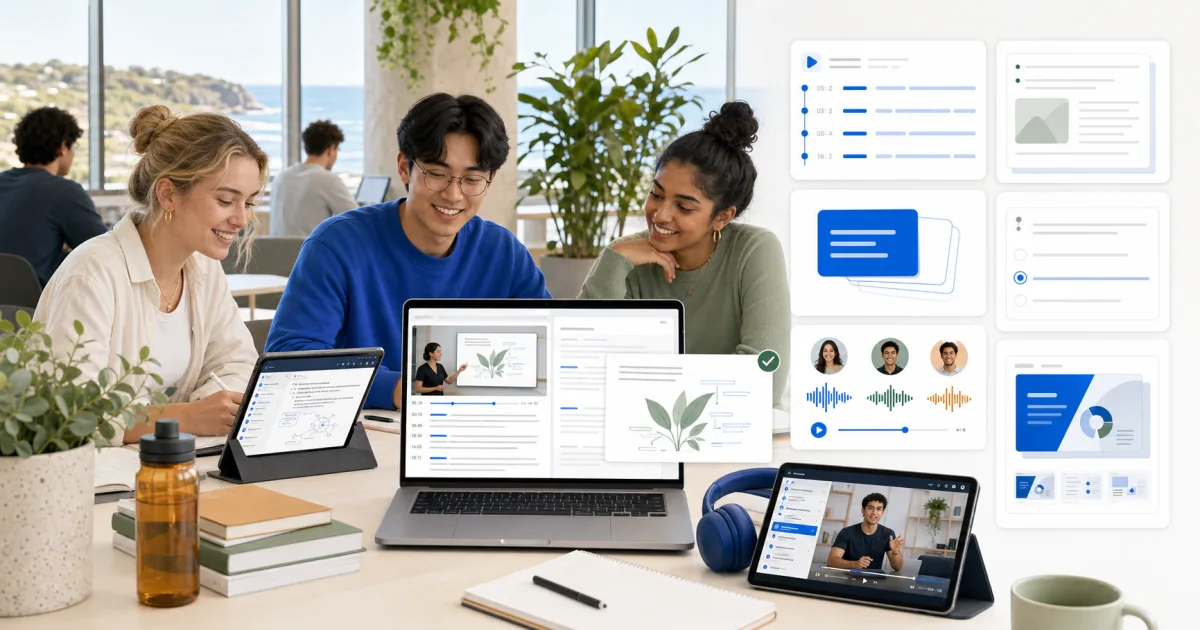
- Narrated concept scenes. Each key idea gets its own scene where diagrams, charts, and labeled illustrations build on screen in sync with the narration. The visuals are generated from the ideas in your PDF, not pulled from stock footage.
- Step-by-step breakdowns. Processes, mechanisms, and equations are walked through one stage at a time on screen rather than flashed as a finished block.
- Chapter markers per concept. Every major topic becomes a clickable chapter, so on a second pass you rewatch the one section that confused you instead of the whole video.
- A study layer around the player. A searchable transcript synced to the video, an AI chat that answers questions grounded in your PDF, and one-click quiz and flashcard generation from the same source.
On length: paid lectures generated from a PDF usually land between 5 and 15 minutes. A slide deck or short handout tends to produce a tight lecture under 10 minutes; a 30–40 page chapter typically becomes a 10–15 minute chaptered lecture, and very long chapters get more chapters rather than a rushed pace. Free videos are a fixed 2 minutes.
What to look for in a PDF-to-video tool
The market is full of tools that do the bad version. Here's what separates the useful ones:
- Script quality. Does it teach, or does it read the PDF aloud? Generate one lecture from a chapter you already understand and judge whether the explanation is how you'd explain it to a friend.
- Visuals that explain. Scenes should distill — key term, diagram, worked example — not display the original page. If the visuals are just the PDF pages, skip the tool.
- Natural narration. 2026-era neural voices are good. A flat, robotic voice will make you quit by minute three. Listen to a sample first.
- Scanned-PDF support. Essential if your readings are scans of older textbooks.
- Sensible length control. A tool that turns every upload into a 30-minute lecture is wasting your time.
- Downstream study tools. The best tools let you generate flashcards and a practice quiz from the same upload, so understanding flows straight into retention without re-entering the material elsewhere.
- Honest sourcing. A good tool keeps the source PDF accessible so you can verify anything the narration claims.
- Honest free tier. "Free" should mean a real, specified allowance — a stated length, resolution, and count — not a watermarked preview you can't actually learn from.
Common questions
Does the video have audio? Yes. Every video is narrated from start to finish by a natural-sounding AI voice, synced to the scenes and chapters. Captions and a transcript are included as well.
Is there a free PDF to video AI? Yes, with an honest limit. The Free plan includes one lifetime AI creation and one lifetime upload (up to 8 MB, PDFs processed up to 32 pages). That creation can be a narrated 2-minute video at 720p that you watch and share inside Scholarly. It does not reset, and there is no separate free trial. Premium is $30/mo or $144/yr for 10 creations per week, videos up to 45 minutes, 1080p, and watermark-free MP4 downloads.
Can I download the video? MP4 download, watermark-free, is a paid-plan feature. Free videos are watched and shared inside Scholarly.
Will the AI just read my PDF out loud? The bad tools do. Scholarly rewrites the content into a spoken teaching script and pairs it with generated visuals. Test before you trust.
How long does it take? Generation takes 10–25 minutes. You'll get a notification when it's ready, so there's no need to sit and watch the progress bar.
Can I do this with slide decks, not just textbooks? Yes — slide decks are often the best input. The AI follows the slide order, treats each slide as a beat, and narrates the bullets in full sentences with supporting visuals.
Is watching a video enough to be ready for an exam? No. Video builds understanding comfortably, but retention requires self-testing. Always follow the video with flashcards or a practice quiz.
What about equations and code? Scholarly formats equations on screen and explains charts and tables in context, but a narrated video is still the wrong medium for working through a long derivation or a code listing line by line. Keep the original PDF as your primary source for those sections and use the video for the conceptual parts.
How Scholarly does this
Scholarly takes any PDF — a textbook chapter, a research paper, a slide deck, an SOP, or notes from a missed class — and generates a narrated video lecture with a restructured teaching script and illustrated scenes, not a read-aloud of the original pages. It handles scanned PDFs, lets paid users set the target length, and keeps the source document attached so you can verify anything the narration says.
The part that matters most: from the same upload, Scholarly generates flashcards and a practice quiz, so the comfortable understanding you get from the video flows directly into the self-testing that actually makes it stick — without re-entering the material into a second app.
Try it on tonight's reading
If you have a dense chapter to get through this week:
- Open Scholarly's PDF-to-video tool and upload the PDF (or up to three related ones).
- Generate — on Premium, set a 10–15 minute target; on Free, you get a focused 2-minute version.
- Watch actively, pausing to restate concepts in your own words, and ask the chat about anything that didn't click.
- Generate flashcards from the same upload and test yourself two days later.
If the video doesn't make the chapter click faster than reading it twice, you've spent one creation. If it does, you've found a better way to get through every dense reading for the rest of the term.