Narrate Your Own Slides With Up to Five Voices
Attach a PowerPoint or slide PDF to an AI Video Lecture, keep your slides on screen, pick which ones to narrate, and give the narration up to five voices.
You can now turn the deck you already made into a narrated video without Scholarly redrawing it. Attach a PowerPoint or a slide PDF to an AI Video Lecture, choose Your slides as the design, pick which slides go in, and choose whether the narration explains each slide or reads your speaker notes word for word. Every AI Video Lecture design can now use one to five voices, so a lecture can be a single narrator or a short conversation between a lecturer and a student.
This post walks through each new piece with screenshots, gives you a three-voice cast you can copy, lists the real limits, and says plainly when another tool is the better choice.
The short version
- Your slides. Your deck stays on screen exactly as you made it (diagrams, equations, branding), and Scholarly narrates it.
- Choose the slides. Type an instruction like "skip the references and appendix", or tap slides to keep or skip them and drag to reorder.
- Two narration modes. Explain each slide, or Read my speaker notes word for word when the deck has notes.
- Up to five voices in every AI Video Lecture design, each with a name, a role and a voice. More voices cost no extra credits.
- Your files. With two or more files, decide what each one is for: teach from it, use only its pictures, or leave it out. Likely copies start as Don't use.
- Links to files work like uploads. Paste a link to a PDF, Word file, deck, spreadsheet, image, audio or video and it arrives as that file.
- A rebuilt AI Organizer proposes projects and folders for your loose Library items, and nothing moves until you apply it.
Narrate your own slides
Step 1: Attach your deck and pick Your slides
Open Home, choose AI video lectures, and add your deck from your Library, an upload, Google Drive or a link. A deck is a PowerPoint file (.pptx or .ppt), an OpenDocument .odp, a Google Slides deck picked from Drive, or a PDF whose first page is landscape. Speaker notes are read from .pptx files and Google Slides. Keynote can export to .pptx. Press Next.
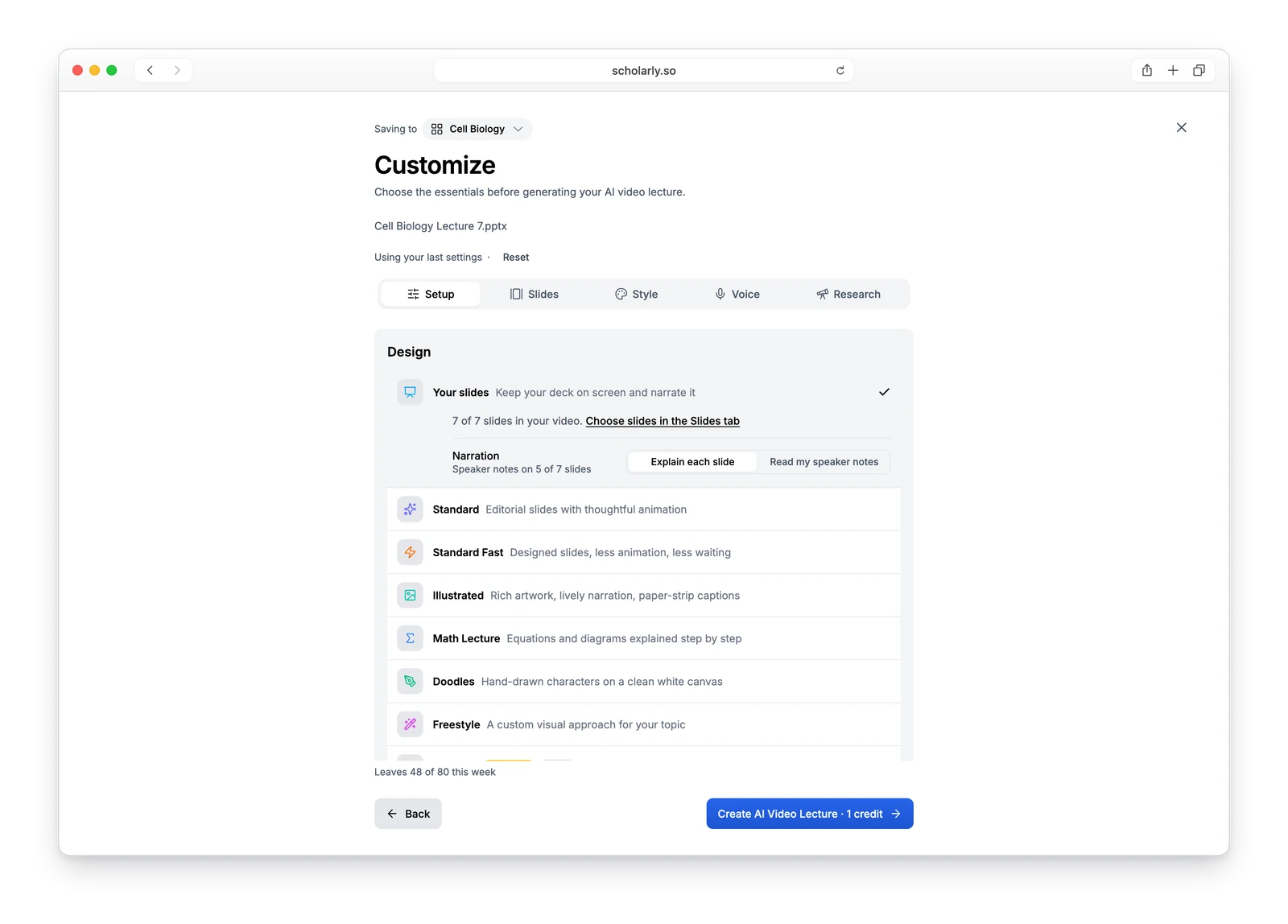
When a deck is attached, Your slides is the first entry in Setup's Design list. Pick it, and the row shows how many slides are in your video. If your deck has speaker notes, a Narration choice appears under it.
Setup with Your slides picked for a seven-slide cell biology deck, with speaker notes on five slides:
Step 2: Choose which slides go in
Open the Slides tab (or tap Choose slides in the Slides tab). You have two ways to pick:
- Tell AI which slides to use. Type a plain instruction and press Apply. The examples under the box are a good start: Skip the references and appendix, Only slides with speaker notes, Skip title and section slides. The result says what was skipped, with Undo.
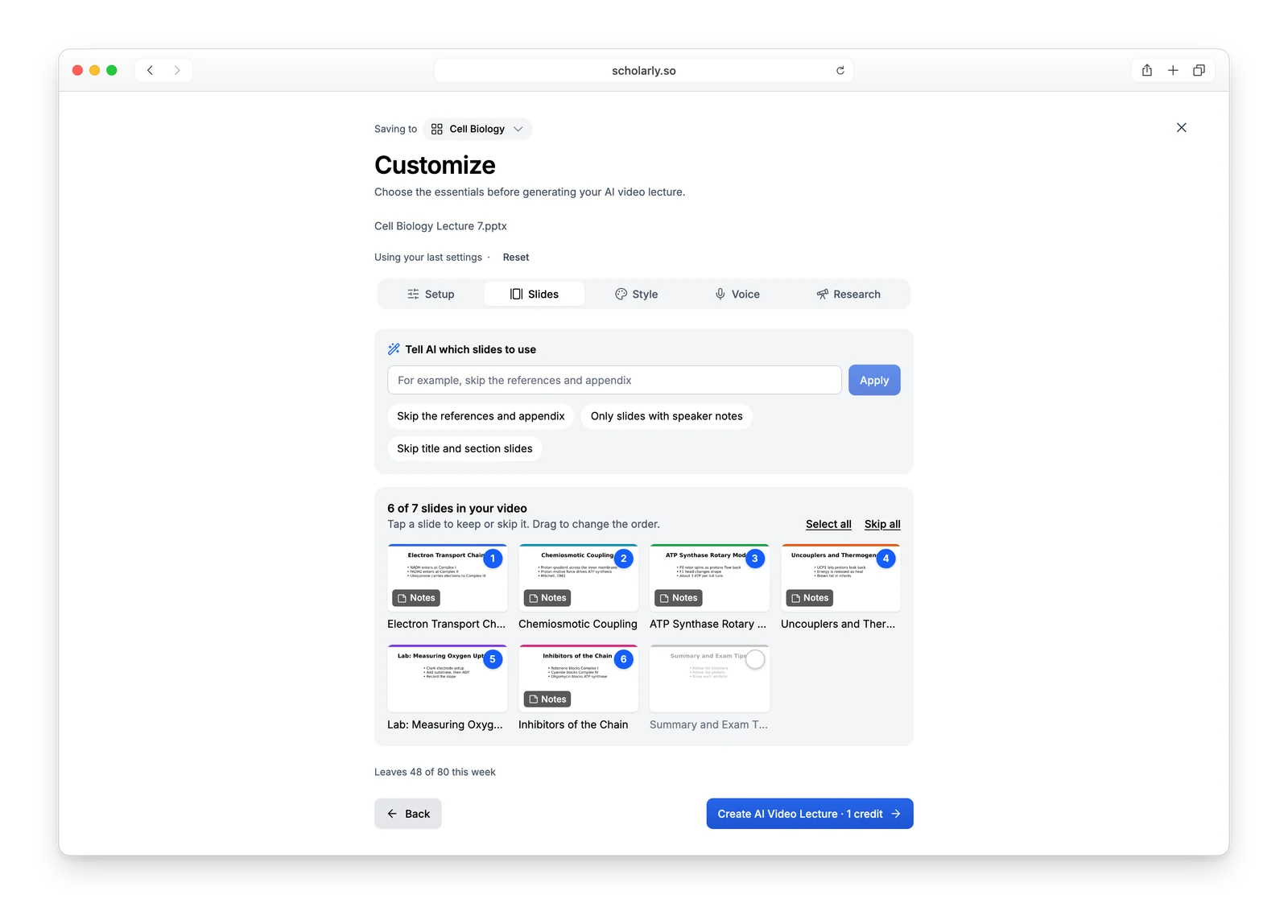
- Tap and drag. Tap a slide to keep or skip it. The number on each slide is its place in the video. Drag to reorder, or use Alt plus the left and right arrow keys. Select all and Skip all reset the grid.
A Notes tag marks the slides that have speaker notes. In the deck below, the last slide (Summary and Exam Tips) has been tapped off, so the video uses 6 of 7 slides:
Step 3: Pick how the slides are narrated
Back on Setup, choose one:
- Explain each slide. Scholarly writes narration that teaches what each slide means, using the slide and any other files you attached. This works for any deck, with or without notes.
- Read my speaker notes. Your notes are read word for word, in slide order. A slide in your video without notes is skipped, and Scholarly tells you how many before you create. Skip slides without notes removes them in one tap. Web research is off in this mode, because nothing is being written.
Speaker notes run at roughly 127 words a minute, so check the length before you create. Notes longer than one video allows are blocked before you spend anything (see the limits table below).
Step 4: Create and watch
The Create button shows the credit cost before you press it. Your slides runs on your plan's default model, and the usual length extras apply: +1 credit for a video over 15 minutes and +2 over 30 minutes.
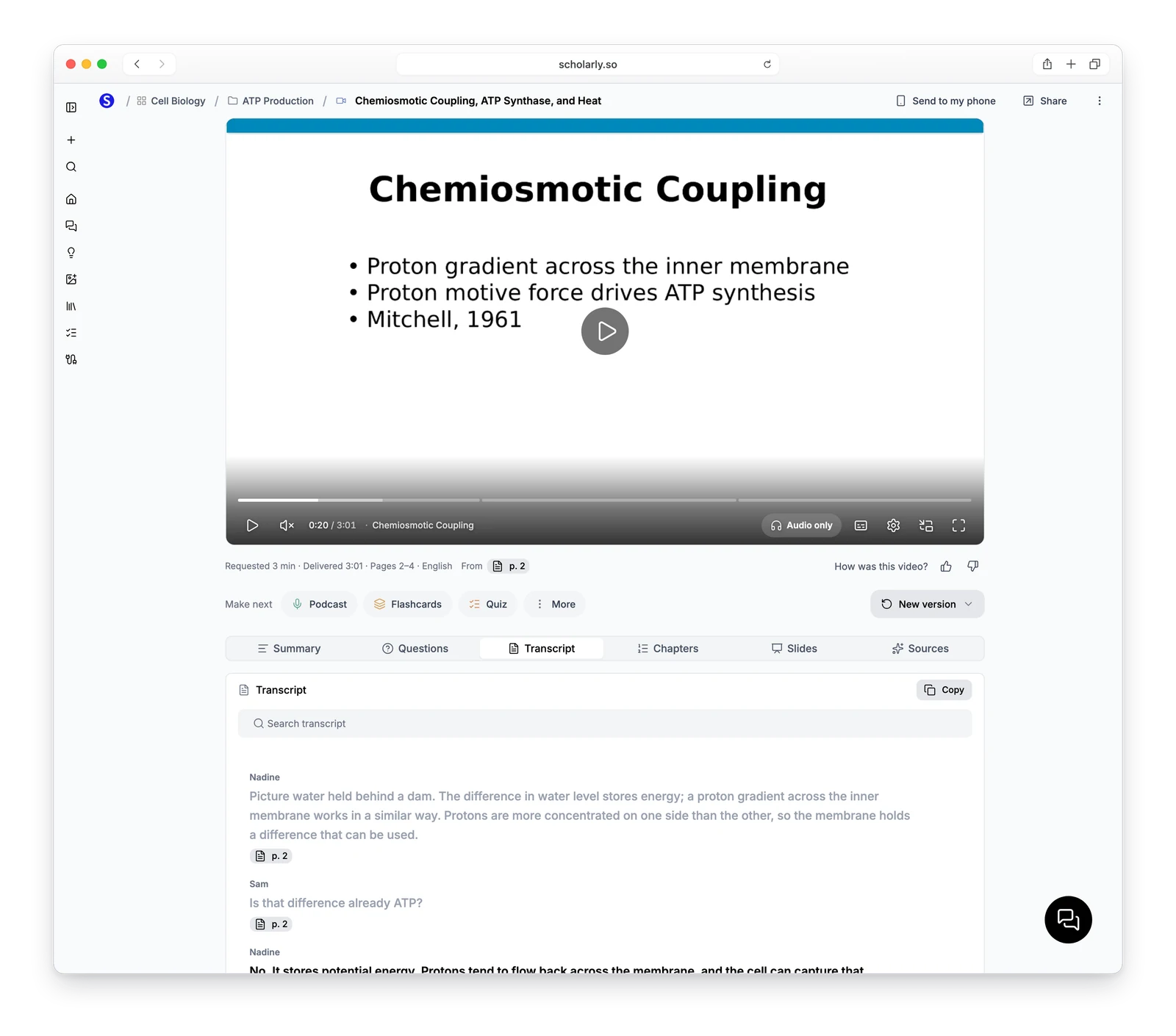
The finished video plays your slides as stills while the narration runs. The transcript names who said each line. This example is a two-voice Your slides video made from the same deck, with Nadine as the lecturer and Sam as a first-year student:
Add up to five voices
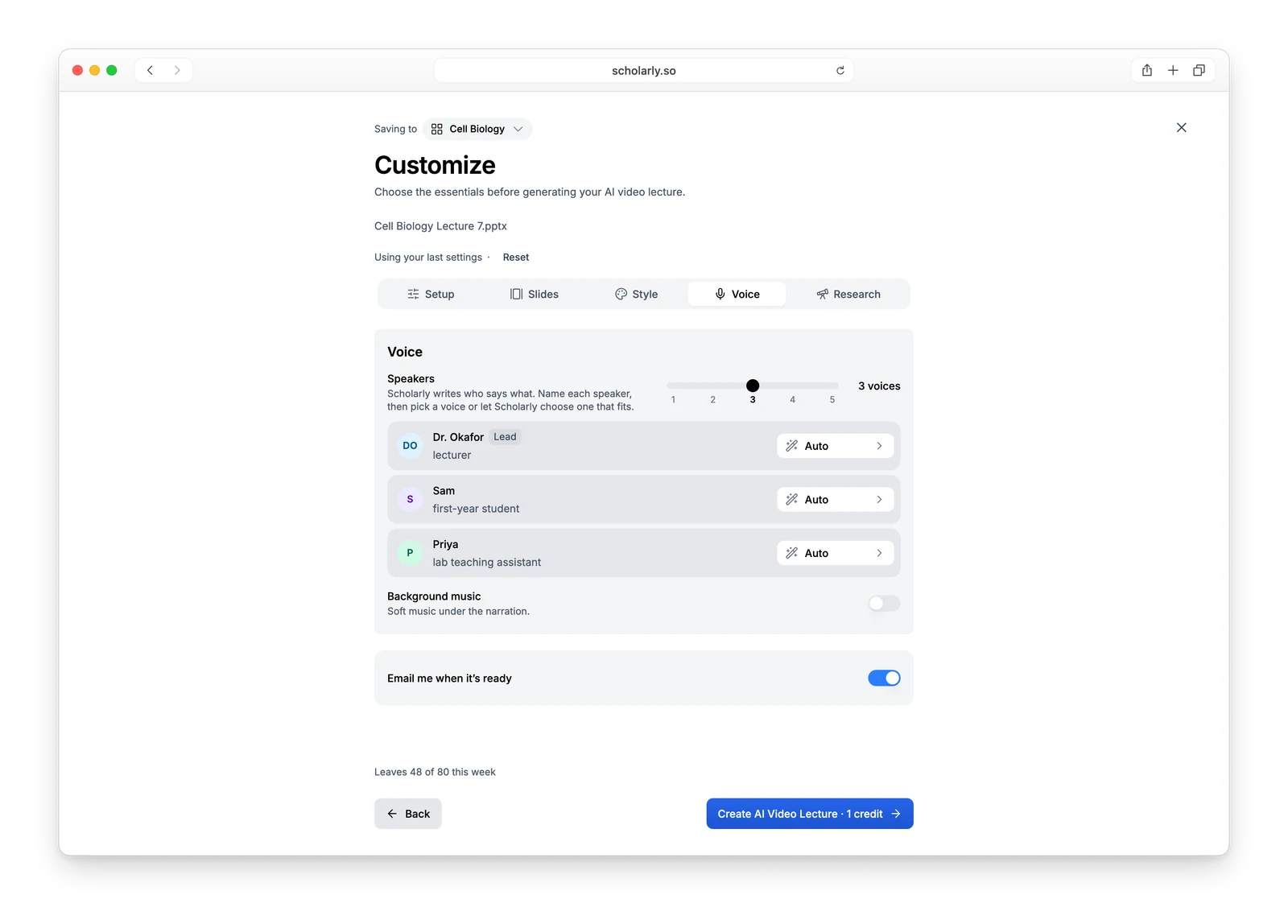
Every AI Video Lecture design now has a Speakers slider on the Voice tab, from 1 to 5. It starts at one voice.
- Open the Voice tab and drag Speakers to the number you want, or tap a number under the track.
- For each speaker, type a name and a role (for example teacher or student). The first speaker is the Lead.
- Pick a voice for each speaker, or leave it on Auto and Scholarly picks one that fits the name and role and sounds different from the others.
The Voice tab with three speakers named and given roles:
How the words are shared depends on the mode:
- Explain each slide and the other generated designs write the narration as a natural conversation: short turns, follow-up questions, each speaker sounding like their role.
- Read my speaker notes and scripts narrated as written keep every word you wrote, and split them between the voices at natural breaks. If your script already has labels like "Host:" or "Maya:", those lines go to the matching speaker and the labels are not spoken.
More voices do not add credits. Scholarly does not clone your voice; every speaker uses one of Scholarly's narration voices.
Choose what each file is for
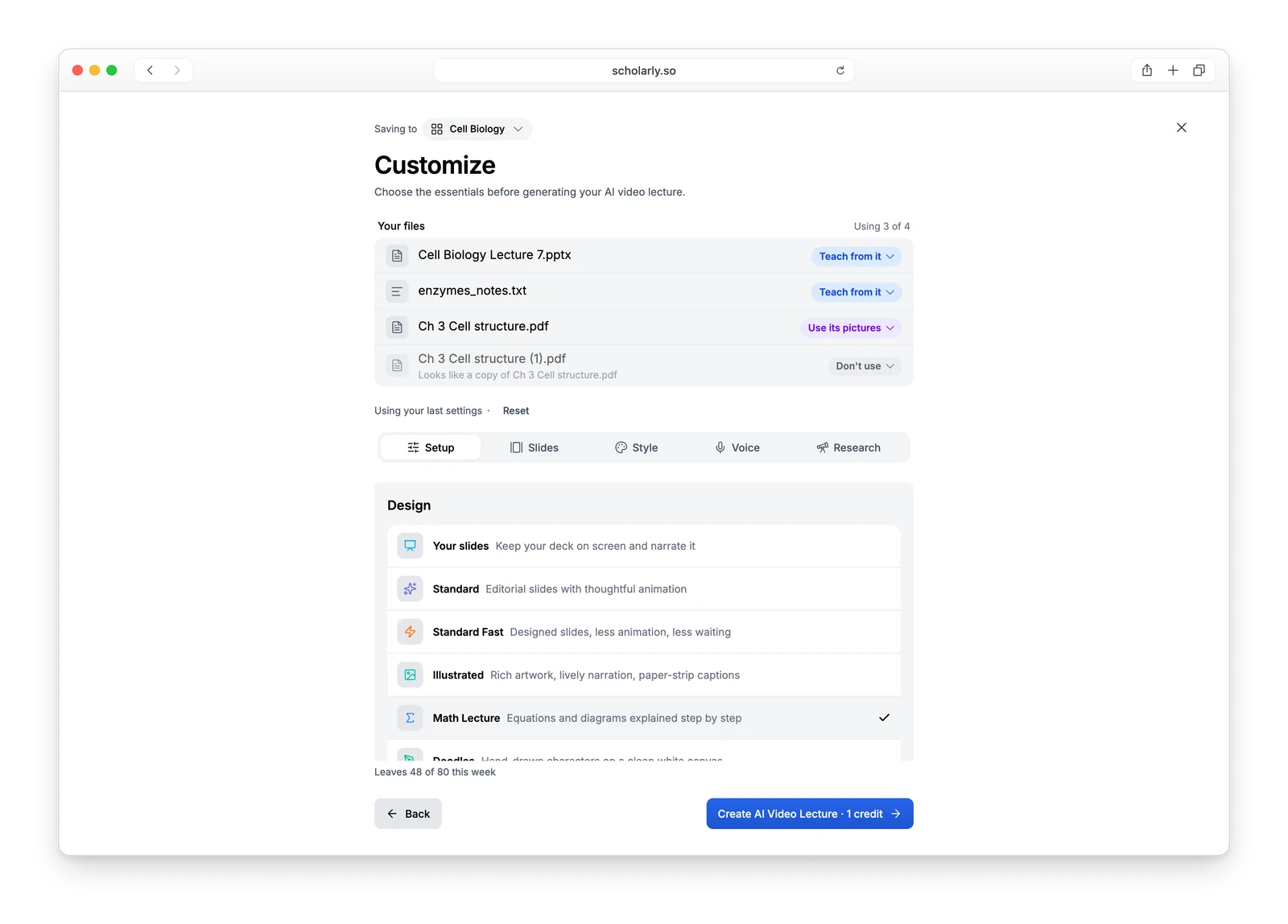
When you add two or more files to a creator, step 2 shows a Your files panel with a count such as "Using 3 of 4." Each file has a chip you can change:
- The creator's verb (the default): Teach from it in video lectures, Discuss it in podcasts, Build slides from it in AI Slides, Use it elsewhere.
- Use its pictures: keep the figures and photos from a PDF, Word, PowerPoint or Drive document without teaching from its text.
- Don't use: leave the file out. It is not uploaded or saved to your Library.
A file whose name looks like a copy of another, such as "Ch 3 Cell structure (1).pdf", starts as Don't use with a note saying which file it copies. Change it if it is really different.
Four files on a video lecture: a deck and notes to teach from, a chapter used only for its pictures, and a duplicate left out:
Your files works in video lectures, podcasts, AI Slides, documents, mind maps, infographics, study guides and the other creators that take files. Flashcards and quizzes have it too, without Use its pictures.
It also combines with Your slides. Set your deck to Use its pictures and pick Your slides: the slides stay on screen while the narration teaches from your other files. That is useful when the deck is sparse and the real content lives in a chapter or your notes.
Paste a link to a file
Paste a link into a creator's link field (it reads "Link to a file or web page"), and Scholarly checks what it points to:
- A link to a PDF, Word or PowerPoint file, spreadsheet, image, audio or video is added as that file under its real name. A linked PDF shows its page count and page selection right away, the same as an upload.
- Google Drive, Docs, Slides and Sheets, Dropbox and OneDrive share links bring in the shared file itself, not a picture of the viewer page. A private link still asks you to change its sharing.
- Linked files, videos included, do not count against your uploads, the same as linked web pages.
- A link to a type Scholarly cannot read, such as a ZIP archive, says so instead of adding a blank page.
The same works in the Library's Upload content window and in chat, where you can ask for flashcards, a quiz or another AI Creation from the linked file.
Let AI Organizer tidy your Library
AI Organizer sits next to Filter at the top of All Content on desktop, on paid plans. Projects now live in your Library too: open All projects from the Library's Projects section, and old Projects links still work.
- Press AI Organizer. It reads the titles and types of your loose items, never what is inside them, and proposes a plan: add items to an existing project, start a new project, or file them into folders inside or outside a project.
- Review the plan. Untick anything that should stay where it is, and rename any new project or folder.
- Press Apply. Everything moves in one step, and the result lists what moved and anything that could not be moved.
One run looks at your 150 most recently opened loose items; run it again after applying to sort the rest.
Worked example: a cell biology lecture with three voices
You have Cell Biology Lecture 7.pptx, seven slides on ATP production with speaker notes on five of them, plus enzymes_notes.txt from your own reading.
- Open AI video lectures, add both files, and press Next. Both start on Teach from it.
- Pick Your slides. On the Slides tab, tap off slide 7 (Summary and Exam Tips) so the video ends on the inhibitors slide. You now have 6 of 7 slides.
- Keep Explain each slide. Two of your slides have no notes, and you want the narration to draw on your enzyme notes too. (Use Read my speaker notes instead when your notes are the exact words you want said.)
- On Voice, set Speakers to 3 and fill in the cast below.
- Check the cost on Create, then create.
A cast template you can copy for a lecture:
| Speaker | Name | Role | What they do in the video |
|---|---|---|---|
| 1 (Lead) | Dr. Okafor | lecturer | Teaches each slide and answers questions |
| 2 | Sam | first-year student | Asks the questions a learner would ask |
| 3 | Priya | lab teaching assistant | Connects the idea to the lab and common exam mistakes |
For a training video, the same shape works as trainer, new hire and team lead. Two voices (teacher and student) is usually enough for a short deck; save four or five for a panel or a debate.
Limits (checked November 28, 2026)
| What | Free | Paid plans |
|---|---|---|
| Slides narrated in one Your slides video | Up to 5 | Up to 120 |
| Length of speaker notes read word for word | About 2 minutes (roughly 250 words) | About 45 minutes (roughly 5,700 words) |
| Voices per video | 1 to 5 | 1 to 5 |
| Extra credits for more voices | None | None |
| Length extras | Not applicable at 2 minutes | +1 credit over 15 minutes, +2 over 30 minutes |
| AI Organizer | Not available | Desktop, 150 most recently opened loose items per run |
Credit costs for a video depend on your plan and the design, and the Create button shows the exact amount before you confirm.
What it does not do
- No PowerPoint animations or transitions. Each slide is shown as a still. If your builds and transitions are the point, PowerPoint's own Export > Create a Video keeps them, along with narration and timings you record yourself.
- No on-screen presenter. Scholarly narrates over your slides. If you want a talking avatar in front of the deck, an avatar tool such as HeyGen is the better fit.
- No voice cloning. Every speaker is one of Scholarly's voices. To use your own voice, record it in PowerPoint and export from there.
- Text baked into slide images is not translated. Narration and captions follow the lecture's language, but the words on your slides stay as written. Translate the deck first if the slides need to change language.
- No reordering on phones. On a phone you can tap a slide to keep or skip it; drag to reorder on a computer.
- If you want new visuals, pick a generated design such as Standard instead of Your slides. Scholarly then redraws the content with its own scenes and diagrams.
Try it
Open Home, choose AI video lectures, attach a deck, and pick Your slides. Start with a short deck and two voices to hear how it sounds. For more on what a finished video includes, see PowerPoint to video and Slides to video.


